
Events
Google Analytics Tracking
Track Surface Form events in Google Analytics using Google Tag Manager (GTM)
Make sure to implement Google Tag Manager (GTM) first before setting up Google Analytics tracking.
1. Create a new data stream in Google Analytics
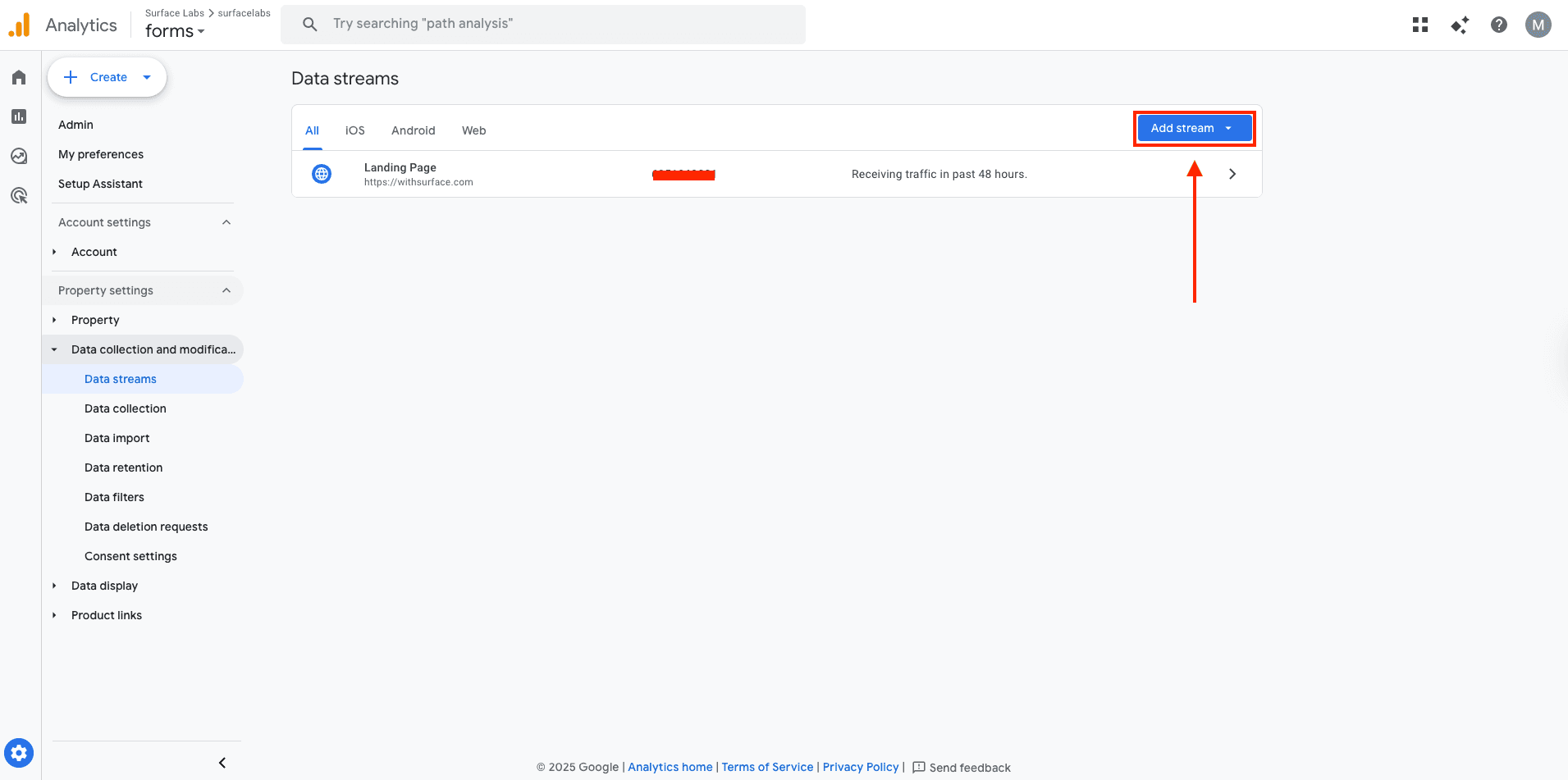
Navigate to your Google Analytics property and create a new data stream for your website.
Steps:
- Go to Admin → Data Collection and Modification → Data Streams
- Click Add stream → Web
- Enter your website URL and stream name
- Click Create stream
2. Get the Google Analytics Measurement ID
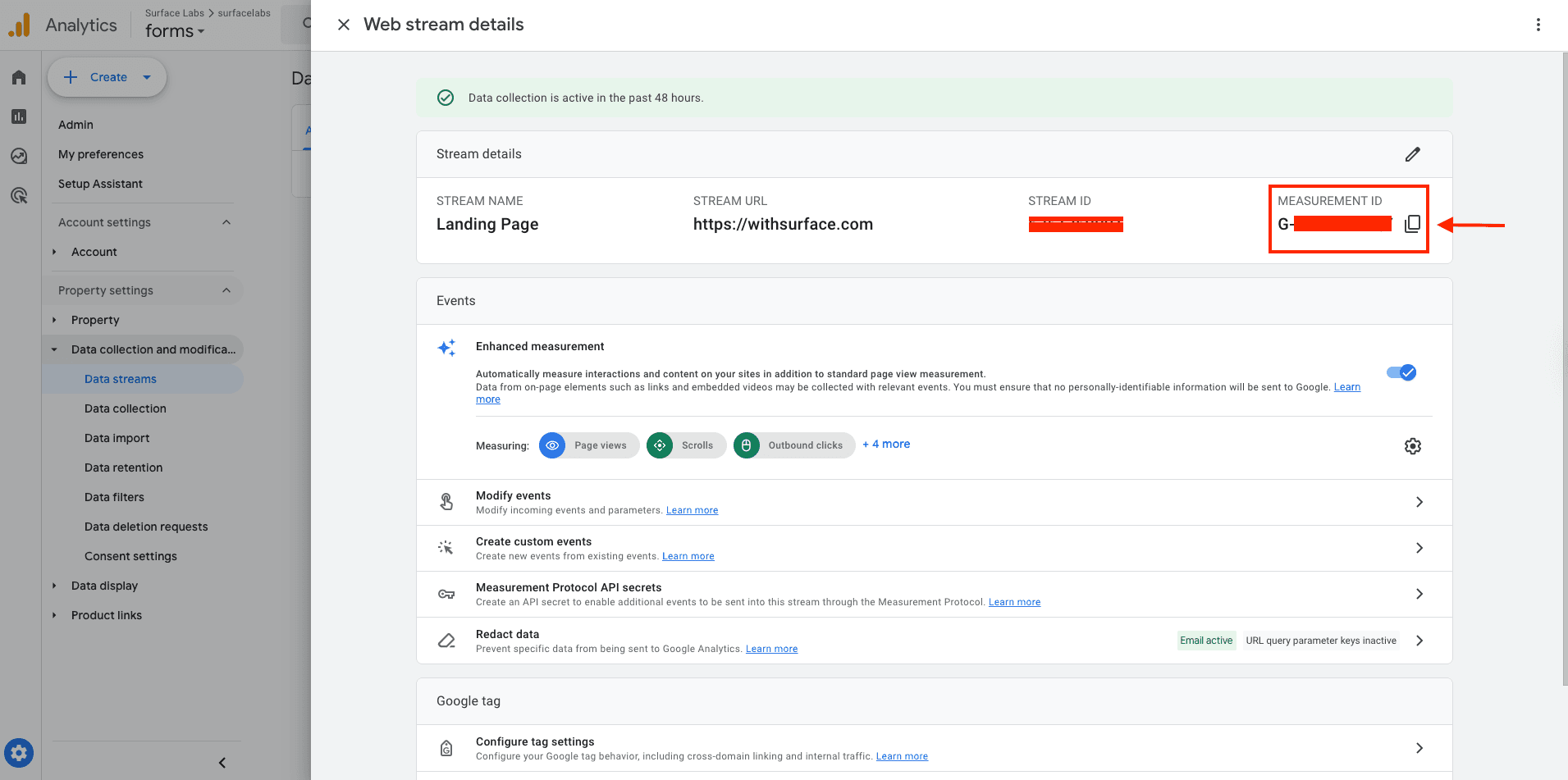
Once your data stream is created, you'll need to copy the Measurement ID to use in GTM.
Steps:
- In the data stream settings, click on your newly created data stream
- Copy the Measurement ID (starts with G-XXXXXXXXXX)
3. Create Custom Events in Google Analytics
Before setting up triggers in GTM, you need to create custom events in Google Analytics.
Steps:
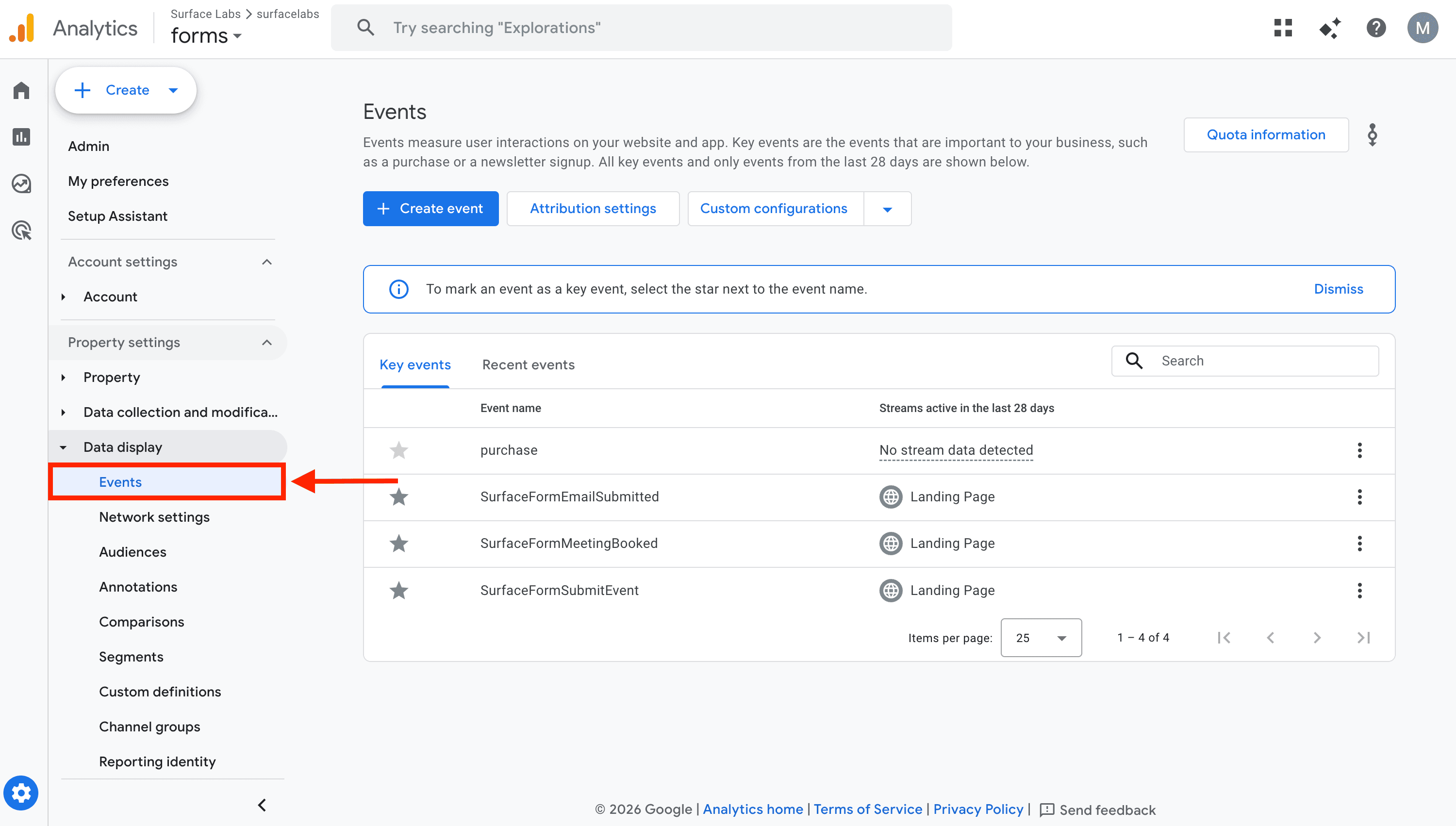
- Go to Admin → Data Display → Events
- Click Create event
- Name the event SurfaceFormSubmitEvent (this should match the event name you'll use in GTM)
- Scroll down and click View more options
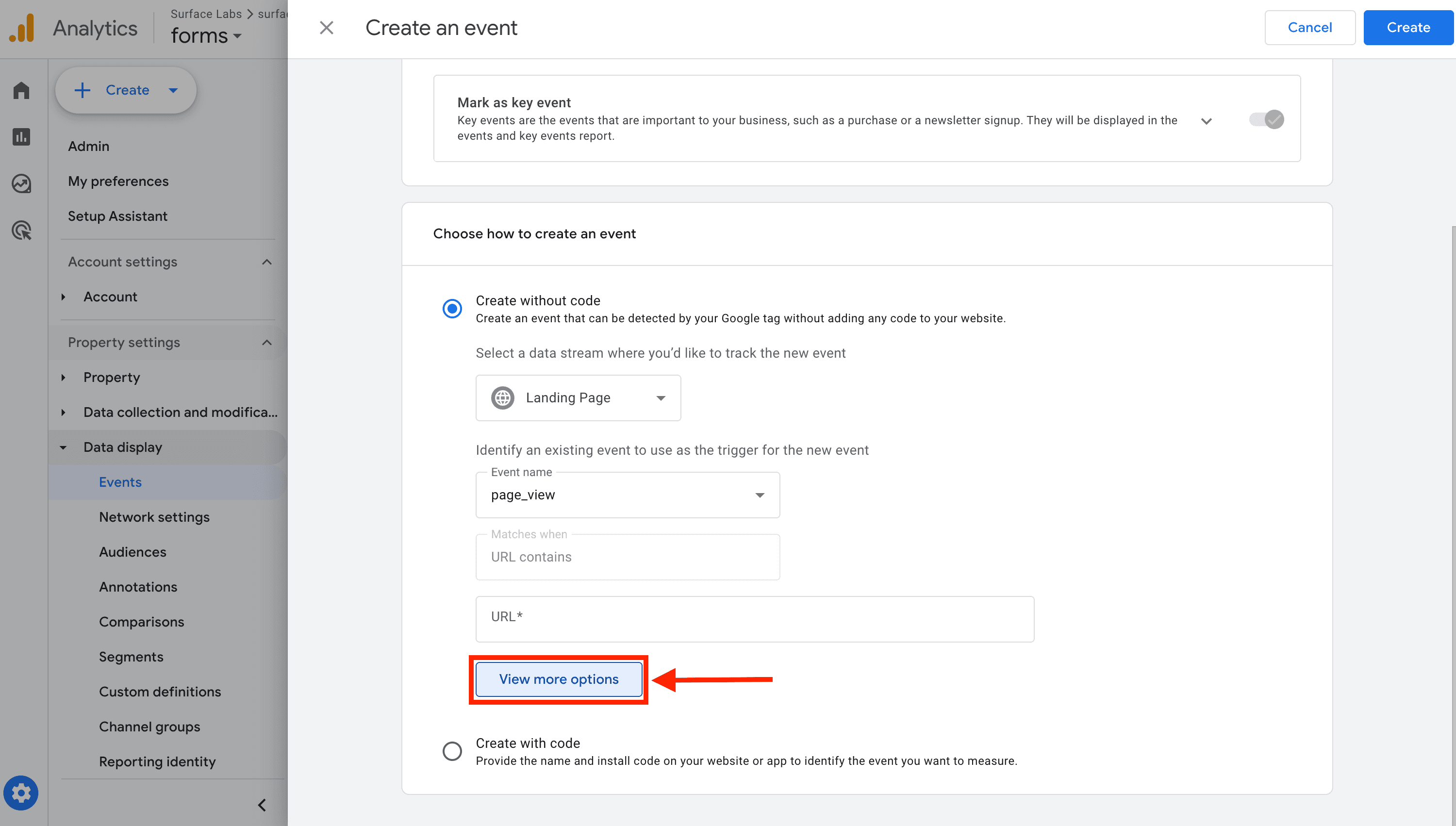
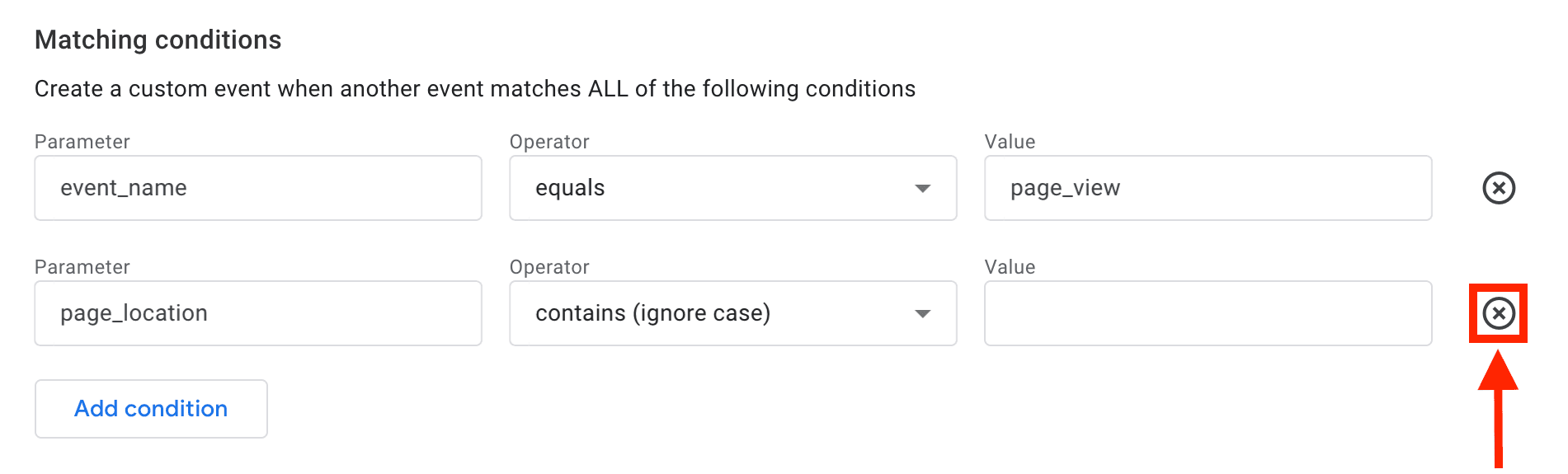
- Under Matching conditions, remove the
page_locationparameter - Click Save
4. Create Custom Event Triggers in GTM
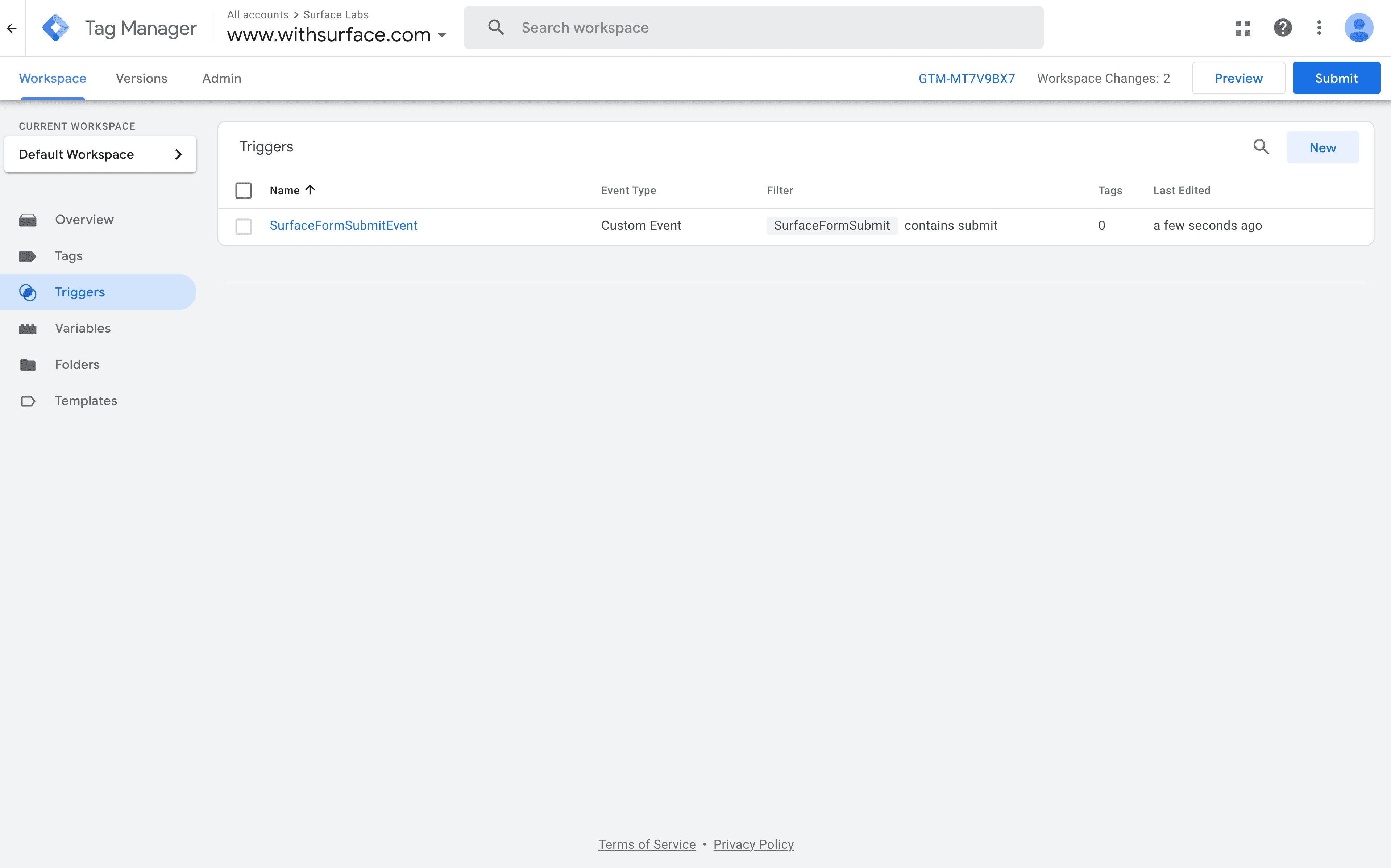
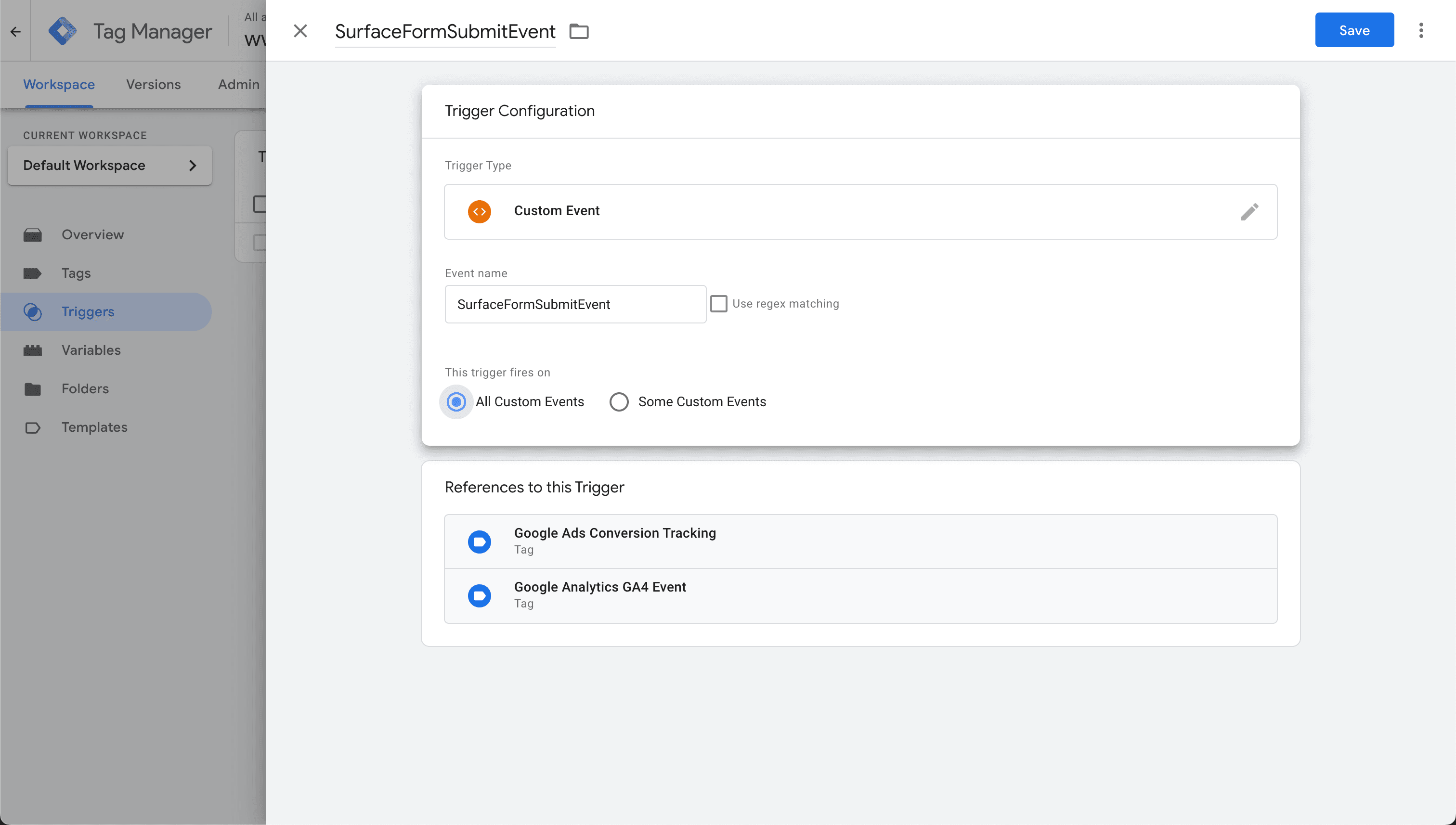
Set up trigger for the Surface Form events you want to track in Google Analytics.
Steps:
- In GTM, go to Triggers
- Click New → Trigger Configuration
- Select Custom Event
- Enter the event name as SurfaceFormSubmitEvent
- Click Save
5. Create Google Analytics GA4 Event Tags
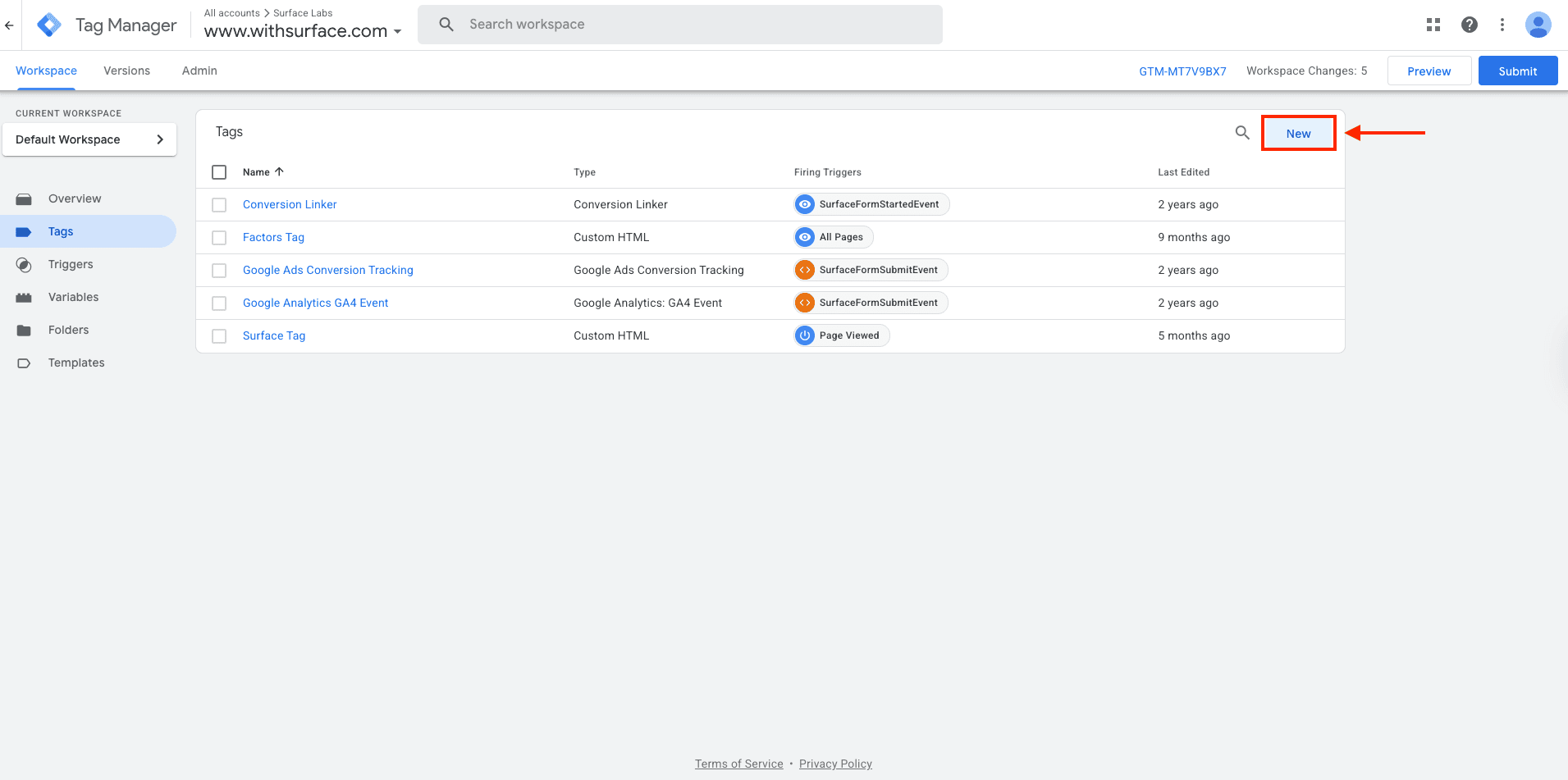
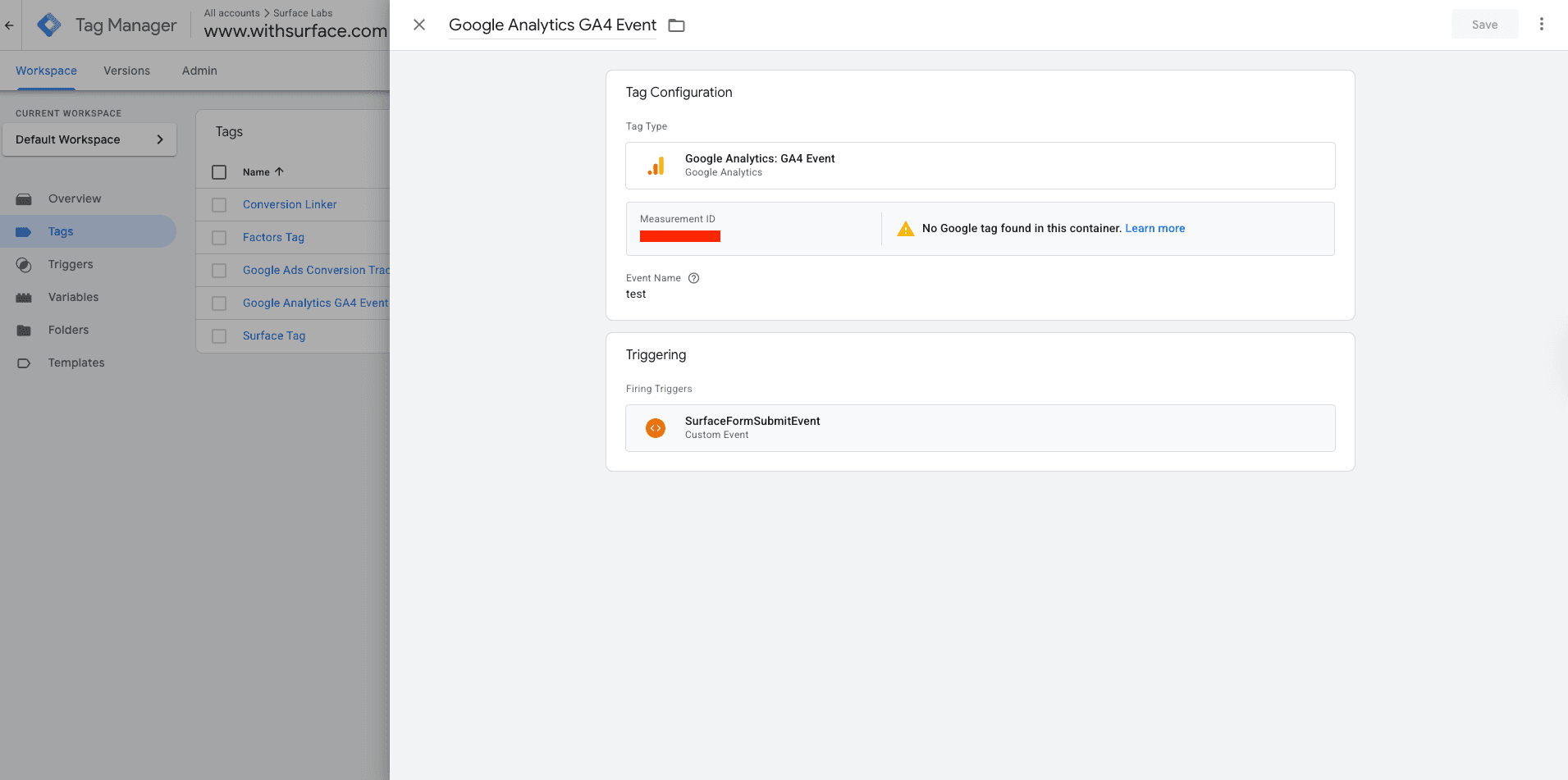
Now create GA4 Event tags that will send the Surface Form events to Google Analytics.
Steps:
- In GTM, go to Tags
- Click New → Tag Configuration
- Select Google Analytics: GA4 Event
- Enter your Measurement ID (from Step 2)
- Set the Event Name
- Under Triggering, select the trigger you created in Step 4
- Click Save
6. Submit and Publish Changes
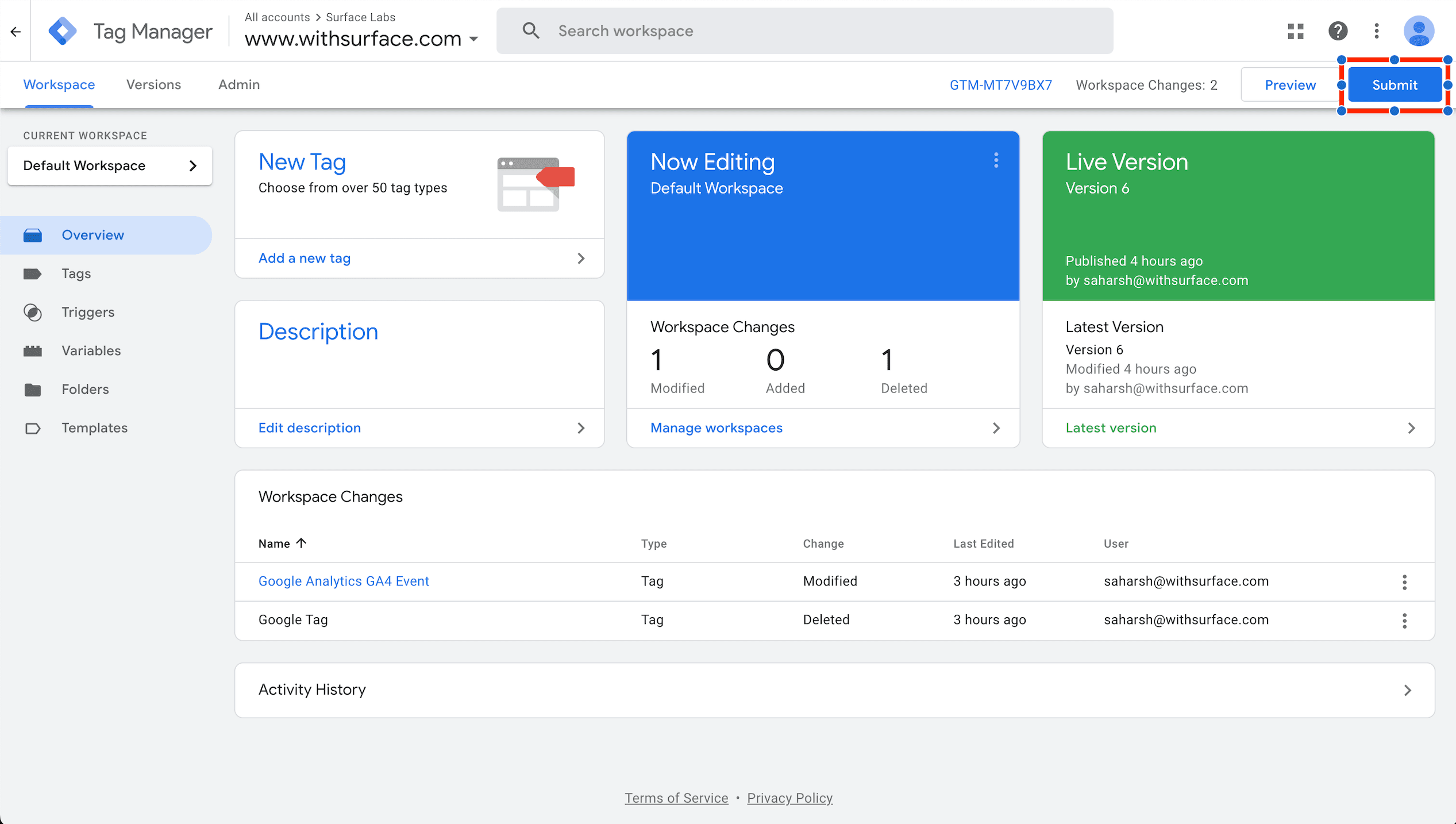
- Click Submit in GTM
- Add a version name and description
- Click Publish
Testing using Google Tag Assistant
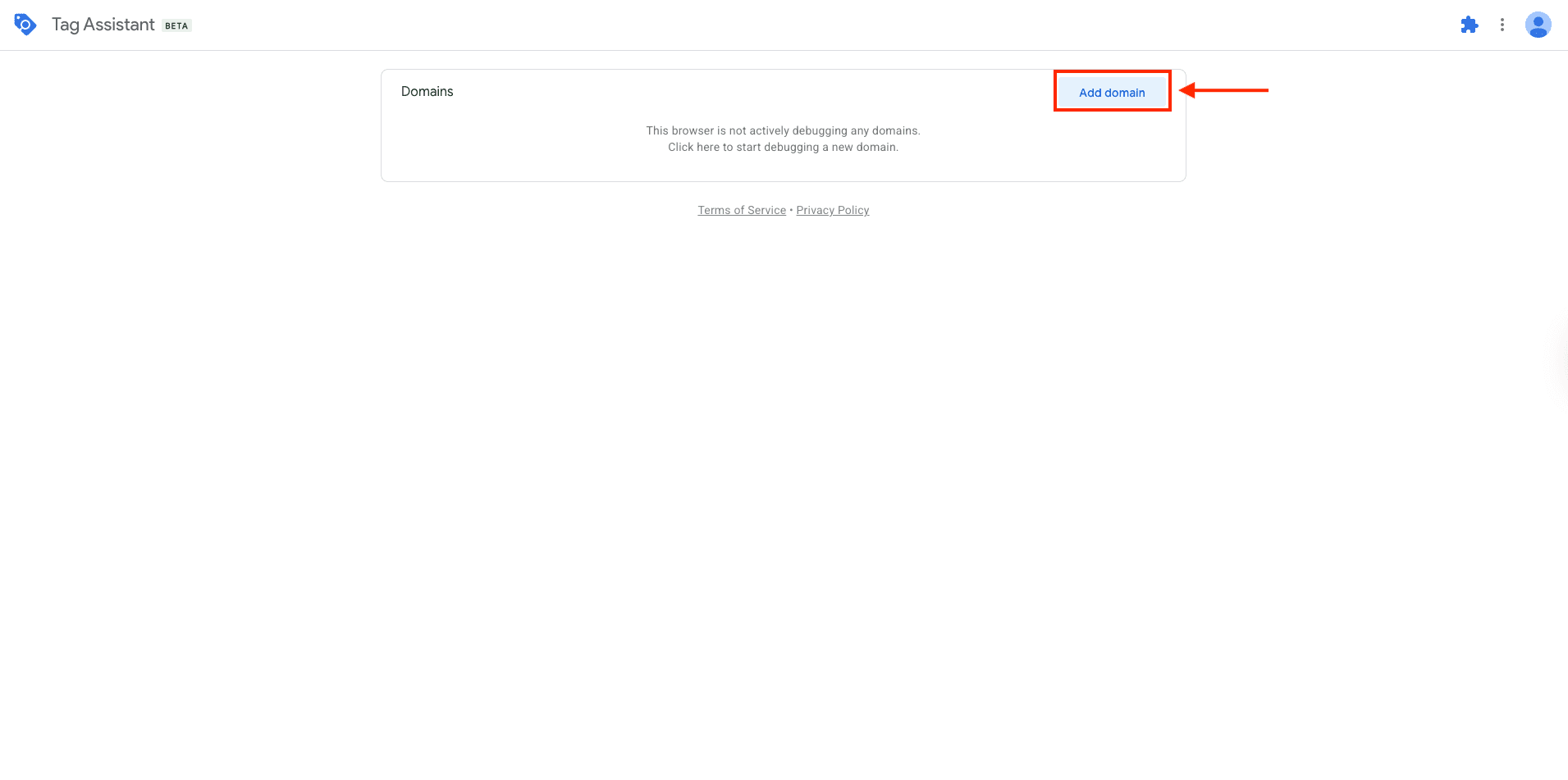
- Install the Google Tag Assistant extension in your browser
- Go to tagassistant.google.com
- Click Add domain and enter your website URL > Click Connect - this will open your website in a new tab
- Fill out and submit a Surface Form to see the events being tracked