
HubSpot Forms Configuration
Step 1: Configure HubSpot Form
Configure your HubSpot form to accept submissions from Surface Forms
You can skip this step if you already have a HubSpot form you want to send submissions to—go straight to Configure HubSpot in Surface Workflow to map your form and set up the sync.
If you need to create or adjust a HubSpot form (for example, to support partial submissions), follow the steps below.
Access Your HubSpot Form
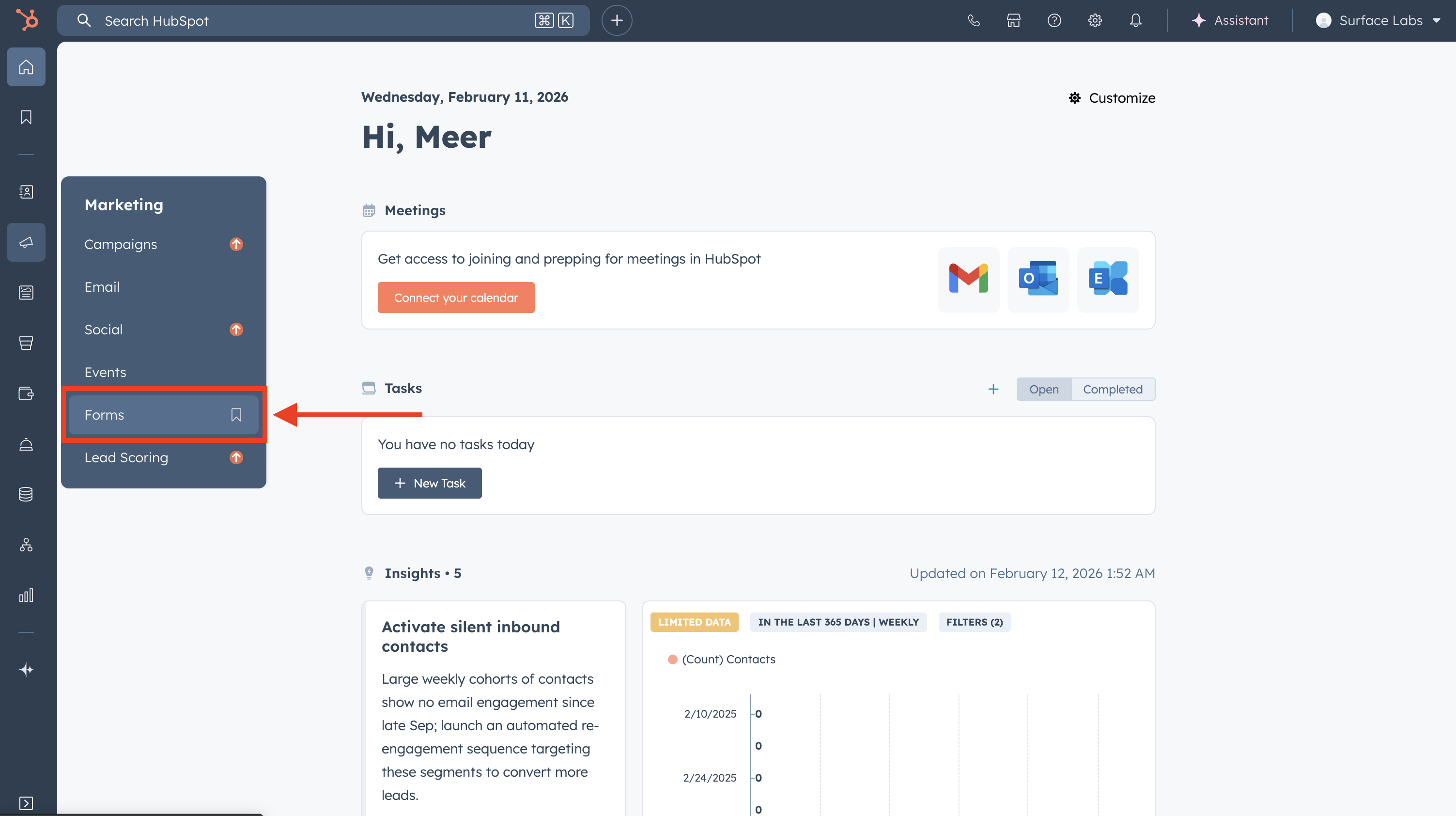
- Log in to your HubSpot account
- Navigate to Marketing → Forms
- Click on the form you want to modify
Make Existing Fields Optional (If Needed)
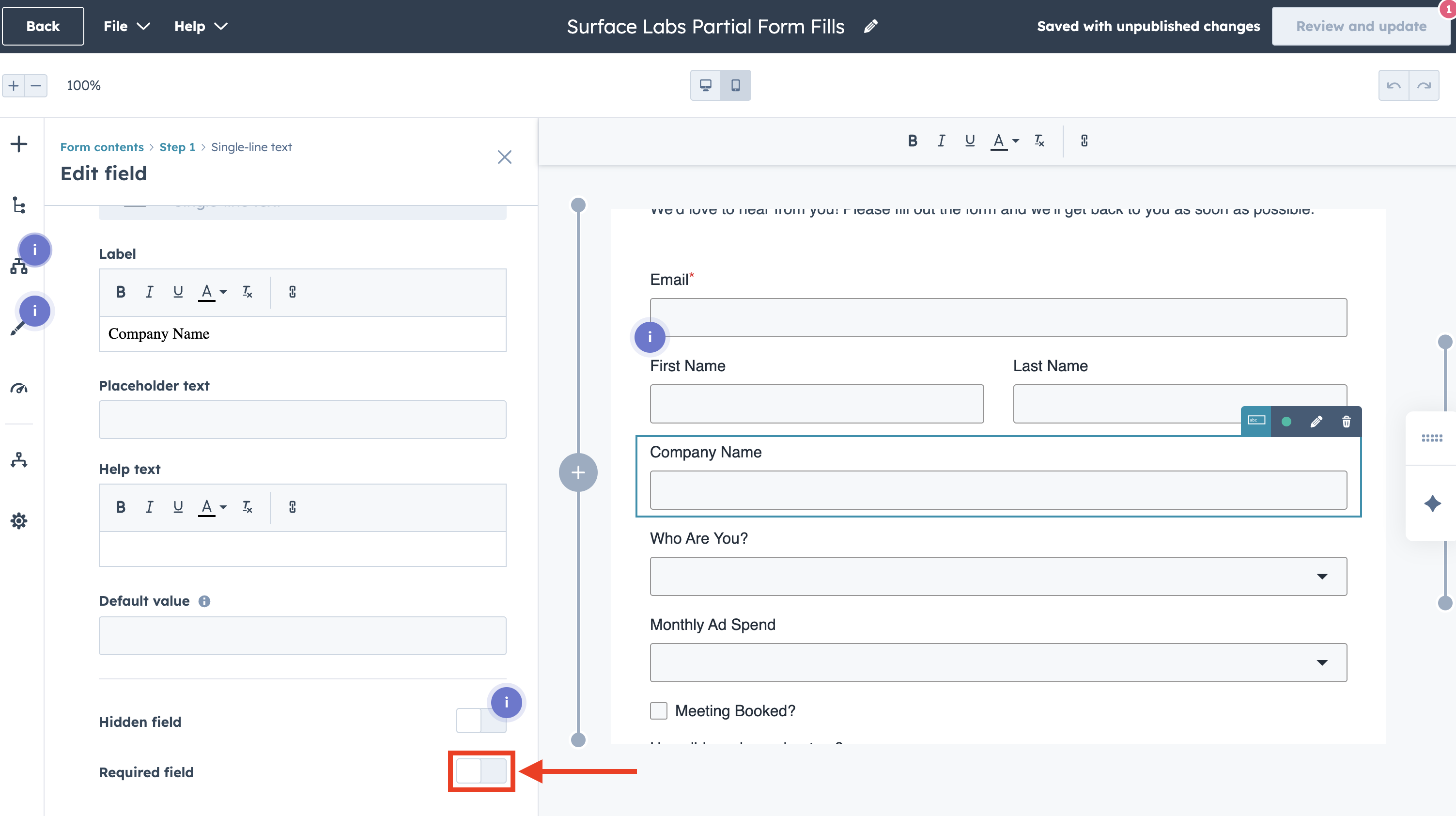
For submissions to work successfully, you may need to make some required fields optional:
-
Click on each field that might be empty in submissions
-
Find the Required checkbox or toggle
-
disable the Required option for fields that:
- Are not essential for lead capture
- May be filled in later stages of the form
- Are not needed for your workflows
-
Keep required any fields that are:
- Essential for your workflows
- Needed for contact identification (like email)
- Required for your business logic
Best Practices
- Workflow Testing: Test workflows with both partial and complete submissions
- Documentation: Document which fields are optional and why
- Monitoring: Track partial vs. complete submissions to optimize your forms