
API based Conditional Logic
Conditional Form Logic Based on Your API Response
Use External API Data in the Logic tab to create branching form flows based on your own API response (for example: auth checks, eligibility checks, plan gating, or enrichment).
If you're new to conditional logic, start with the overview in Conditional Logic.
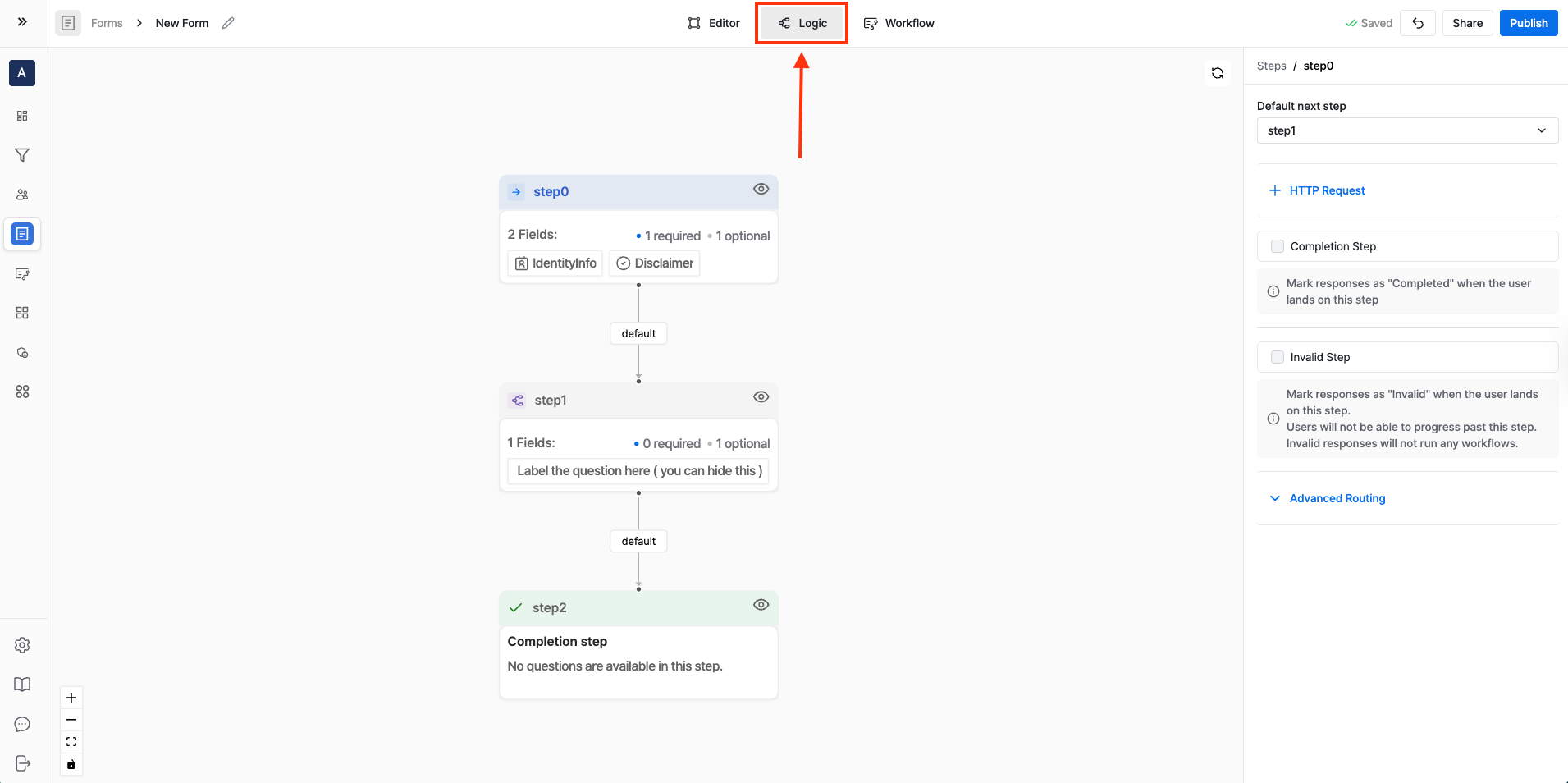
Step 1: Open the Logic tab
- Open your form in the Surface editor.
- Click Logic at the top.
- Select the step where you want to evaluate routing (this is typically the step where the user clicks “Next”).
Step 2: Add an HTTP Request
- With your step selected, click + HTTP Request.
- Configure the request:
- URL: your endpoint (for example,
https://api.yourdomain.com/eligibility) - Method:
GETorPOSTdepending on your API - Params / Headers: add any required values
- Body (POST): send JSON, using form variables if needed
- URL: your endpoint (for example,
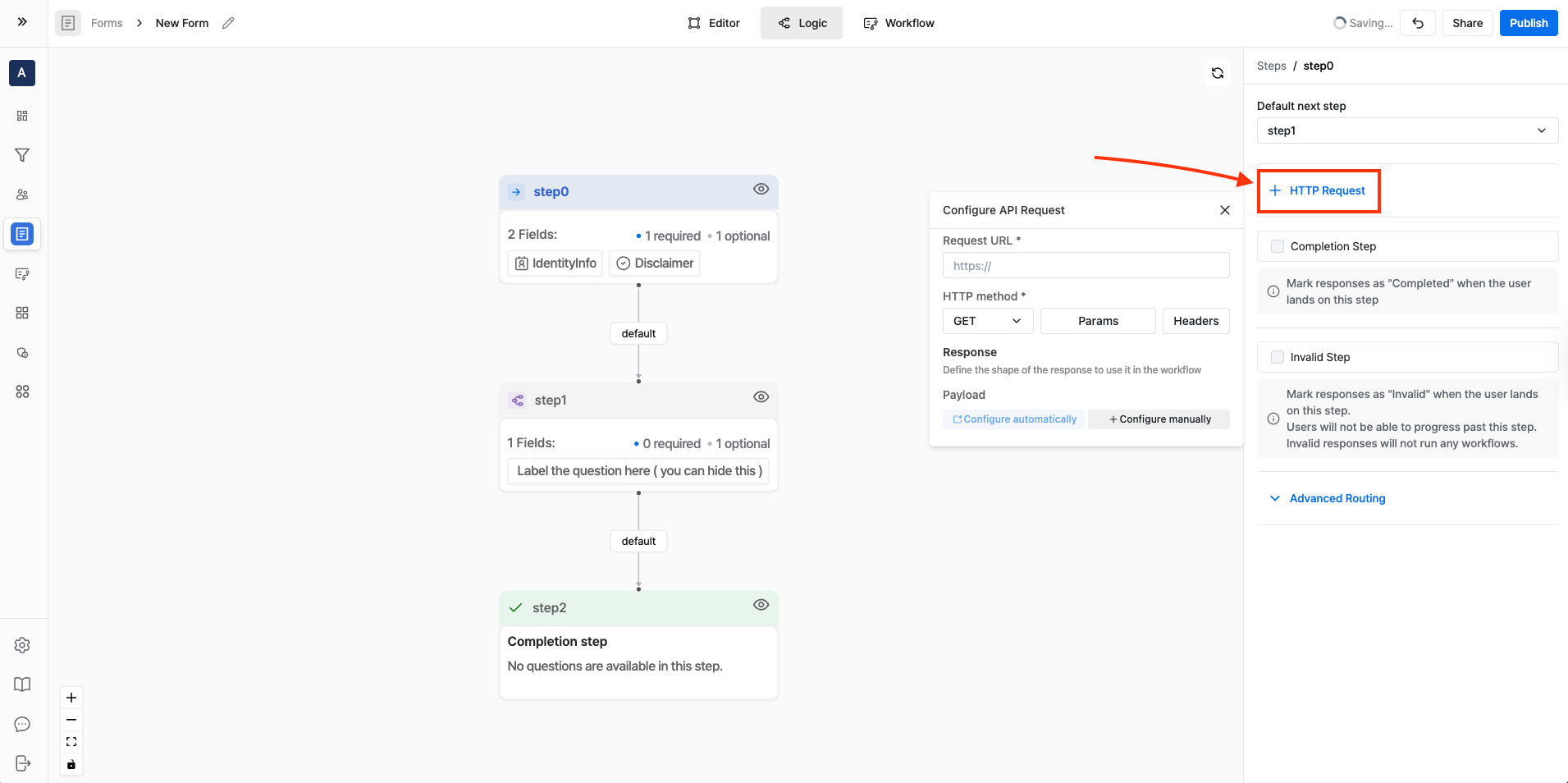
You can use form variables in the URL, Params, Headers, and Body.
Step 3: Map fields from the API response
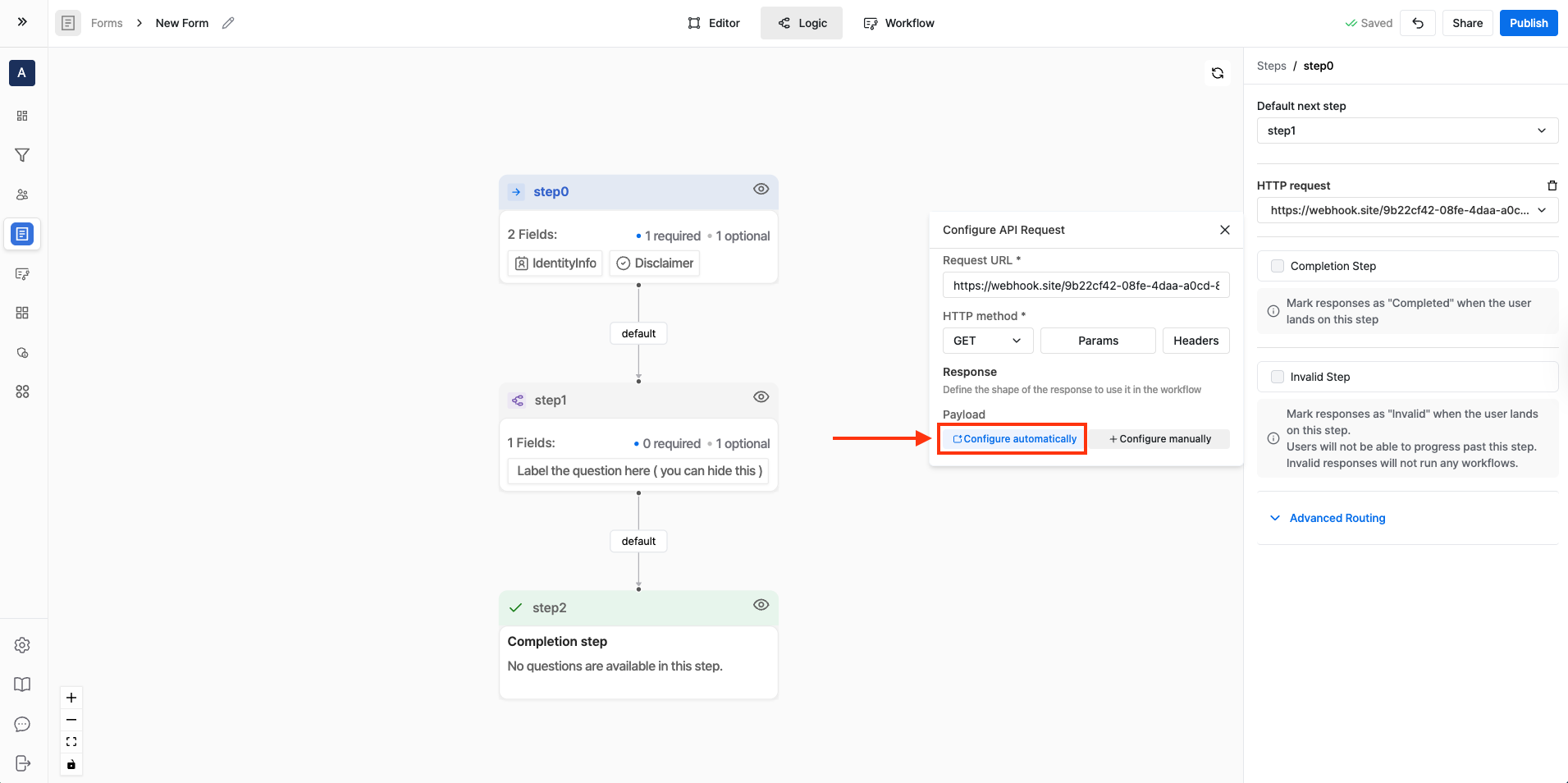
After your request is configured, map values from the JSON response so they're available as External API Data.
You can either:
Automatically Configure the API Response
- Click on "Configure automatically" button.
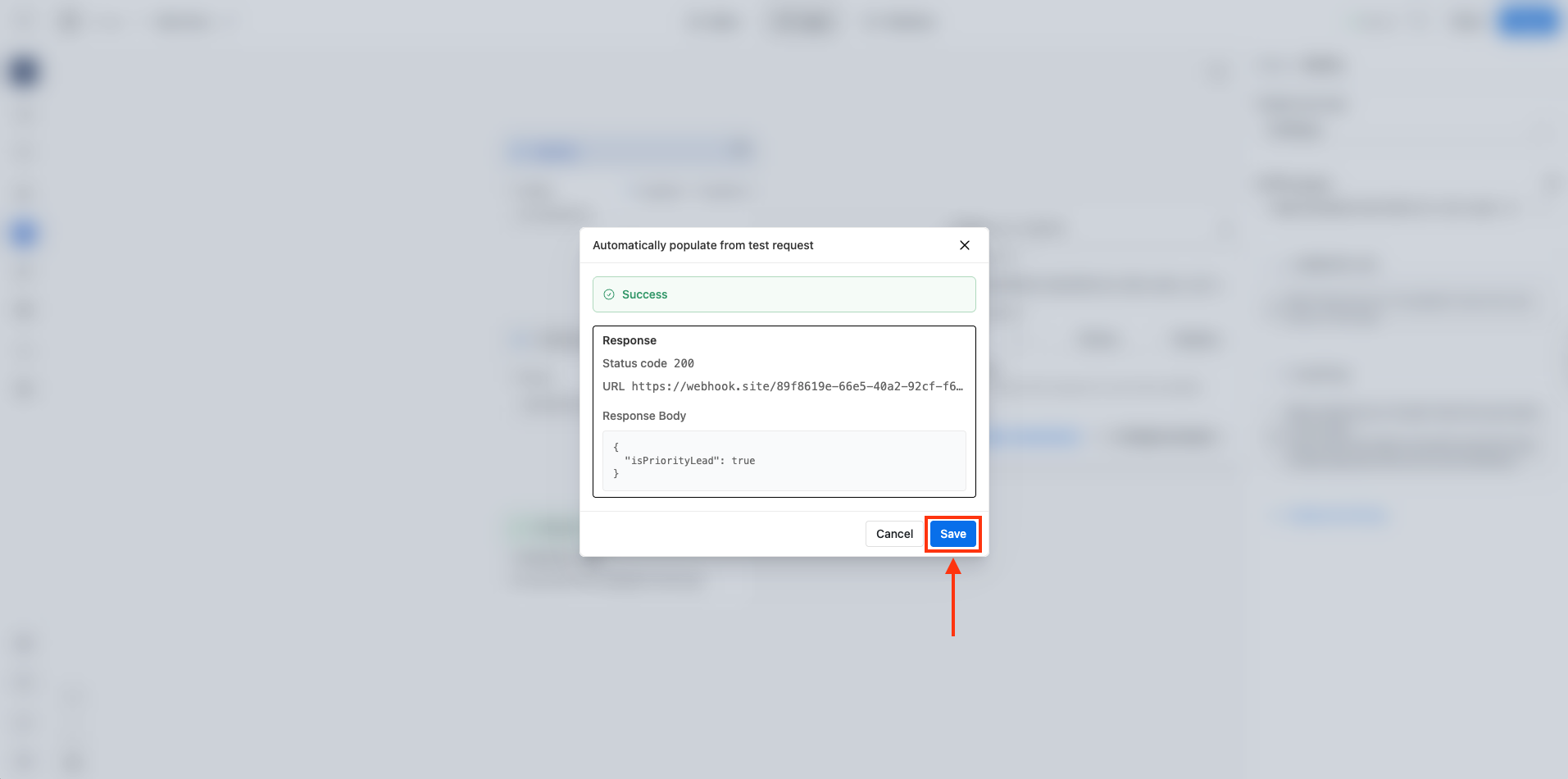
- Surface reads the API response and suggests fields you can map.
- Select the fields you want to map and click on "Save" button.
Manually Configure the API Response
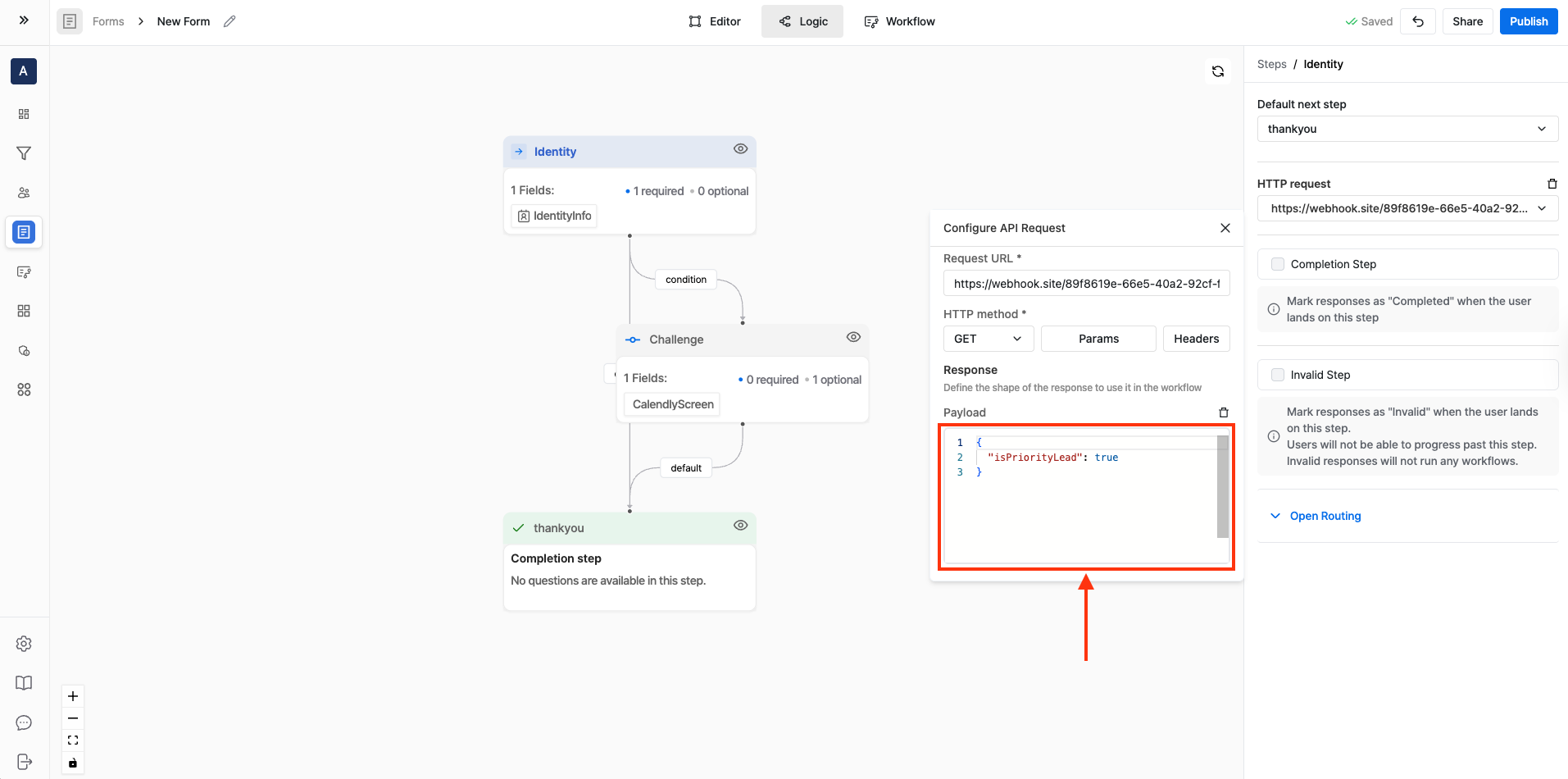
- Click on "Configure manually" button.
- You select the fields to extract from the JSON response yourself.
Step 4: Create an Advanced Routing rule using External API Data
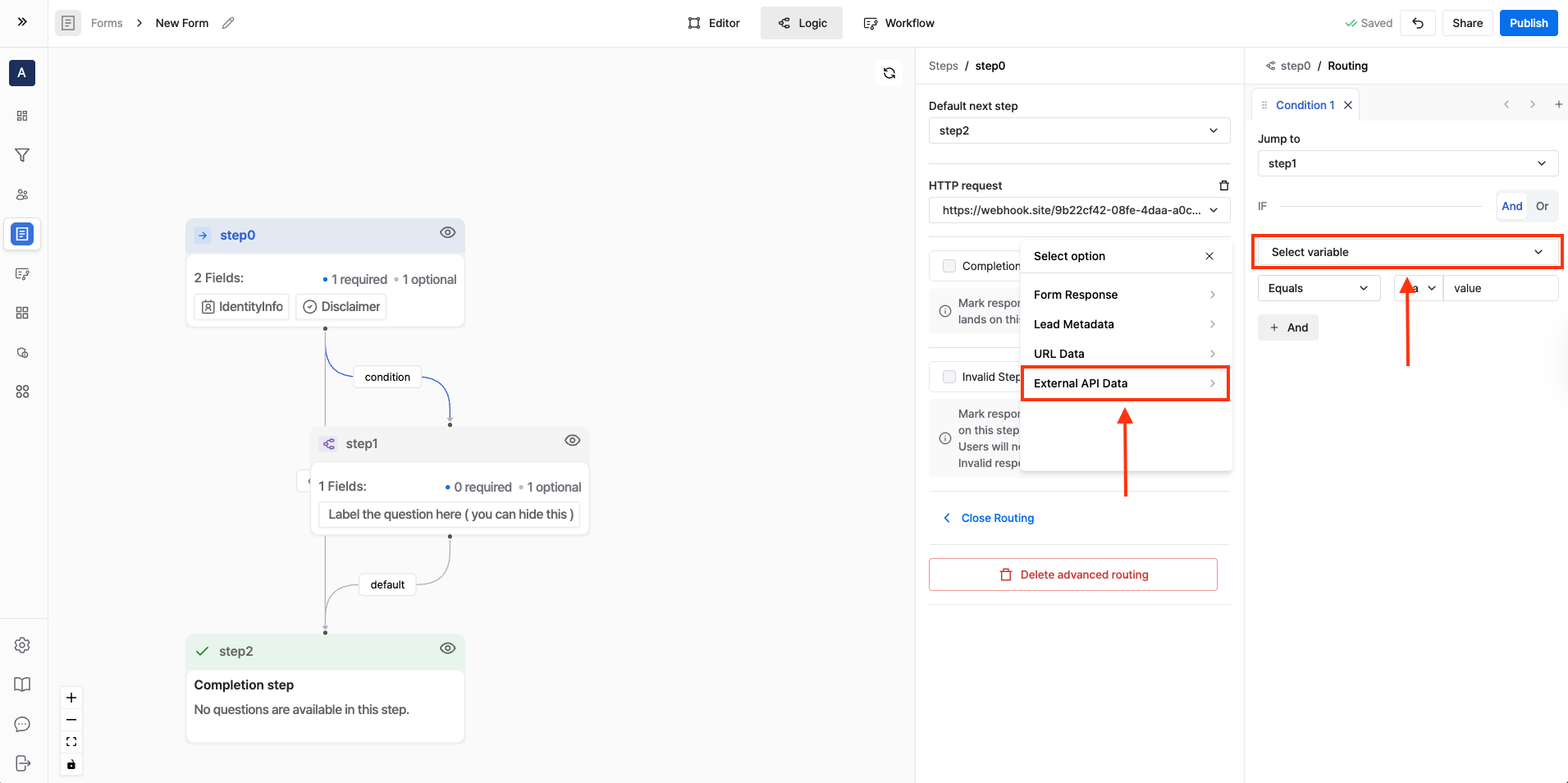
- Open Advanced Routing for the step.
- Set Jump to step to the step you want to send the user to when the condition is met.
- Under IF, set:
- Source:
External API Data - Condition: choose the field you mapped (for example,
isPriorityLead) and compare it to the expected value (for example,true)
- Source:
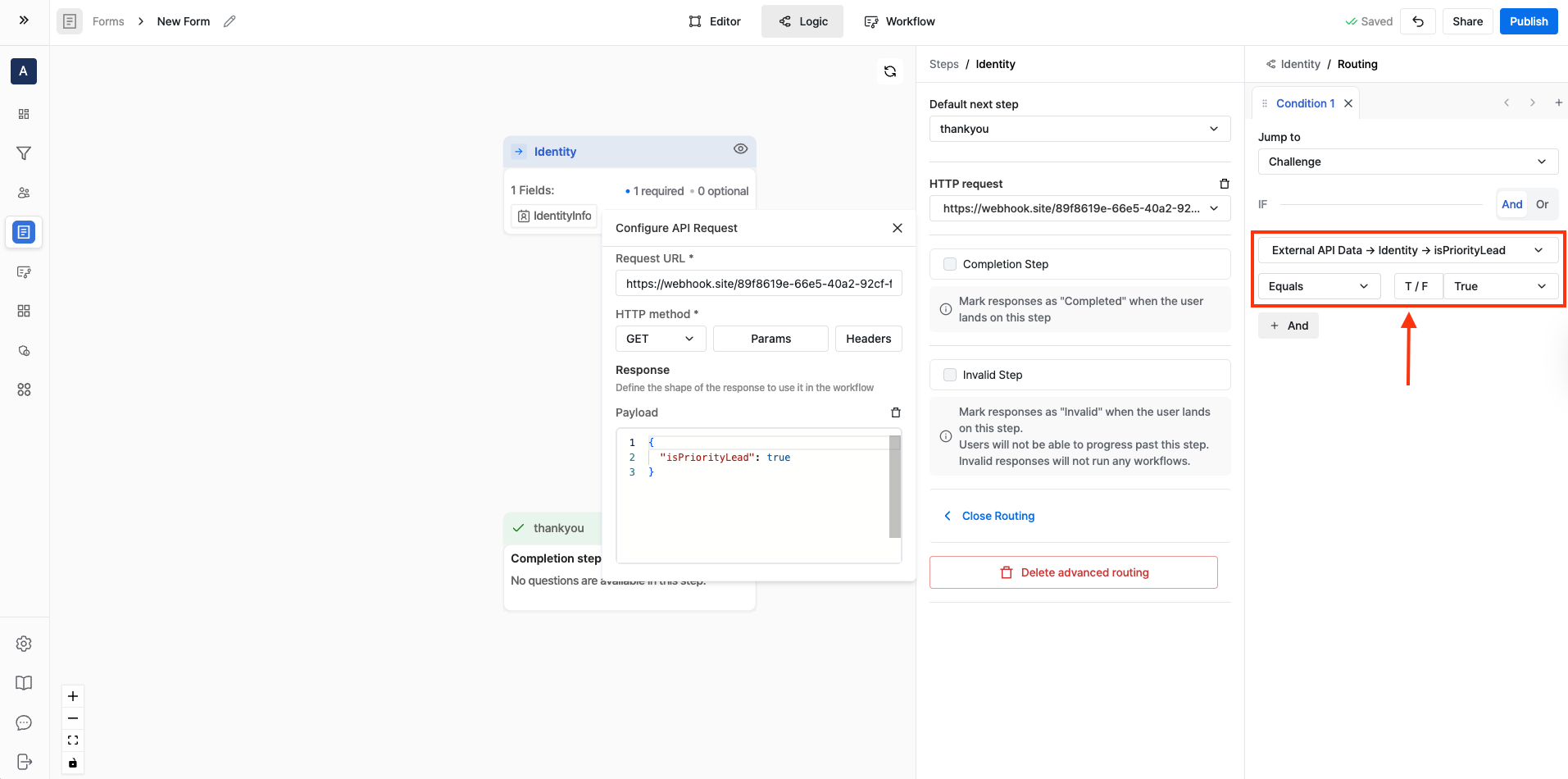
Example: Only proceed if isPriorityLead is true
- IF:
External API Data.isPriorityLeadequalstrue - THEN: Jump to
Step: 1 (Book a Demo) - ELSE: Keep default routing to next step (or jump to a “Not eligible” / “Invalid” step)
Step 5: Publish and test
- Publish your form.
- Submit test entries that should pass and fail the condition.
- Confirm respondents are routed to the right step in both cases.