
Send Data to Clay
Send Surface form submissions to Clay with a webhook and the HTTP Request action
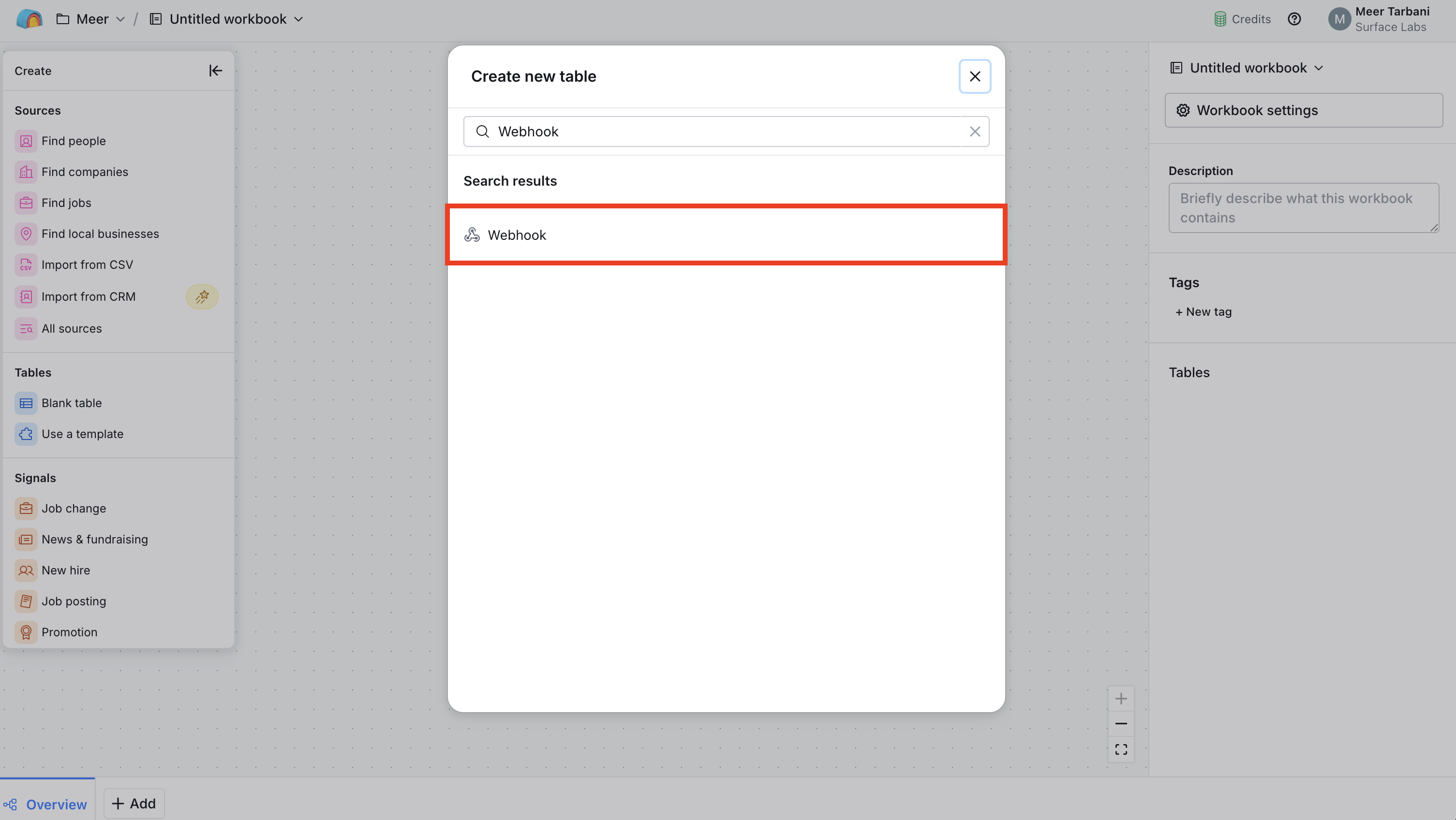
Step 1: Create a Webhook Table in Clay
- In Clay, create a new table
- Add Webhook as the data source for the table
Step 2: Copy the Webhook URL and Set Response Format
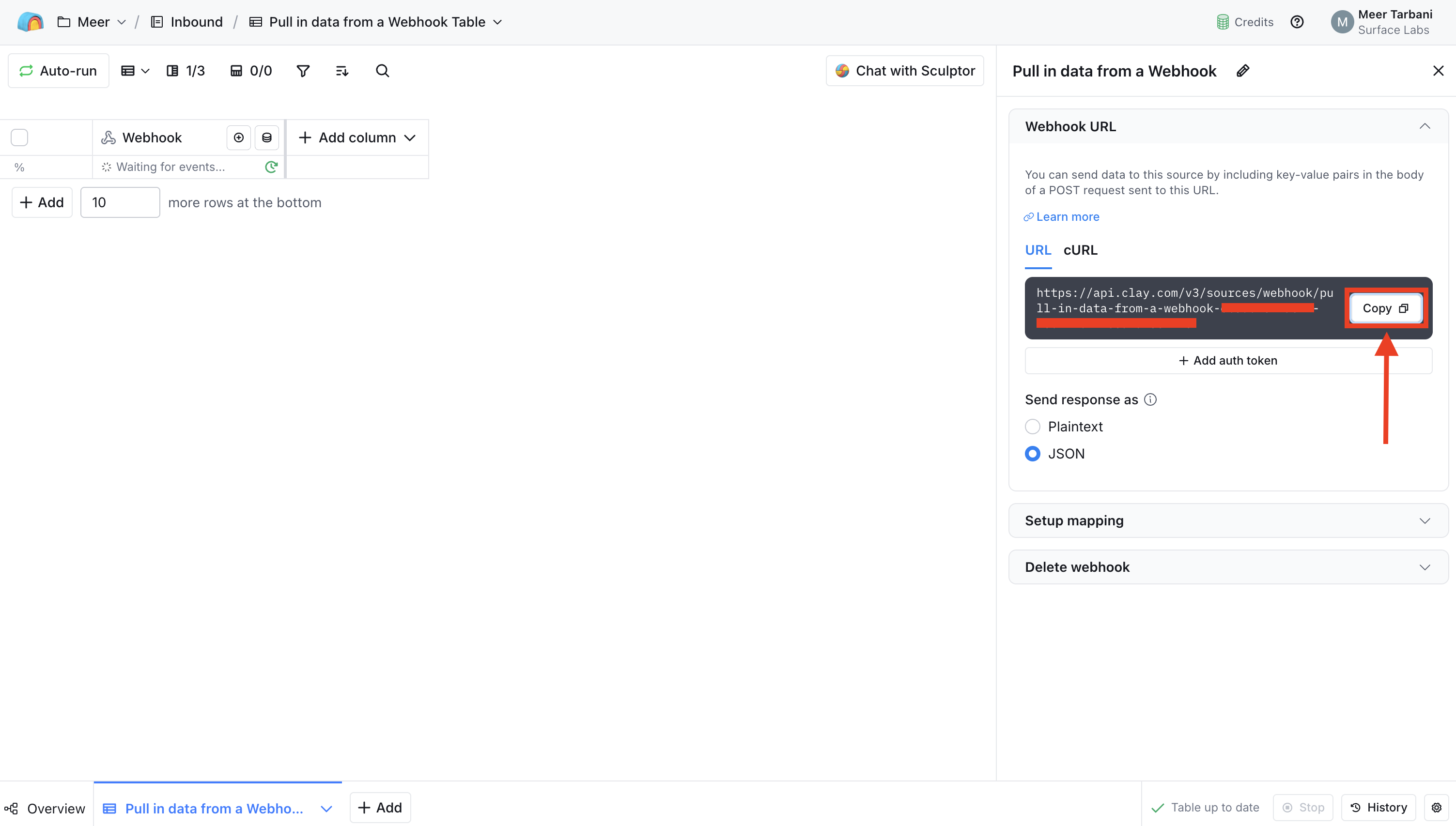
- In the Webhook source configuration, find the Webhook URL
- Copy the Webhook URL. You'll paste this into Surface in a later step
- Set
Send response astoJSONso Clay expects and parses JSON payloads
Step 3: Add an HTTP Request Action in Surface Workflow Builder
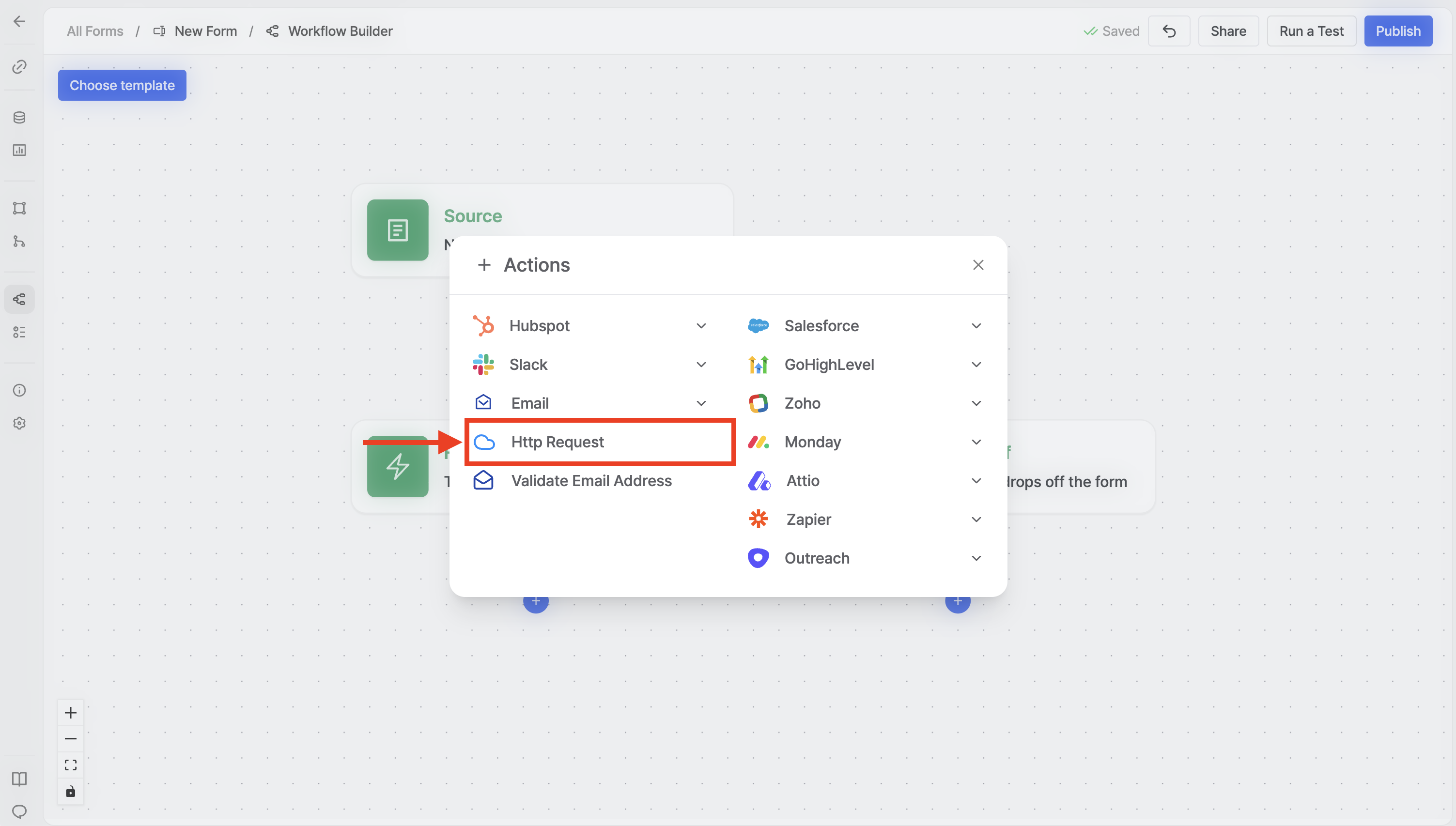
- Open the Workflow Builder in the Surface Platform for your form
- Add a new action to your workflow
- Select HTTP Request from the available actions
Step 4: Configure the HTTP Request Action
Configure the HTTP Request action:
- Request URL: Paste the Webhook URL you copied from Clay
- HTTP Method: Set to POST
- Body: Add a JSON object where each key is the field name Clay expects and each value is the form data. Use the
@symbol in the workflow builder to insert form variables (e.g.@email,@name).
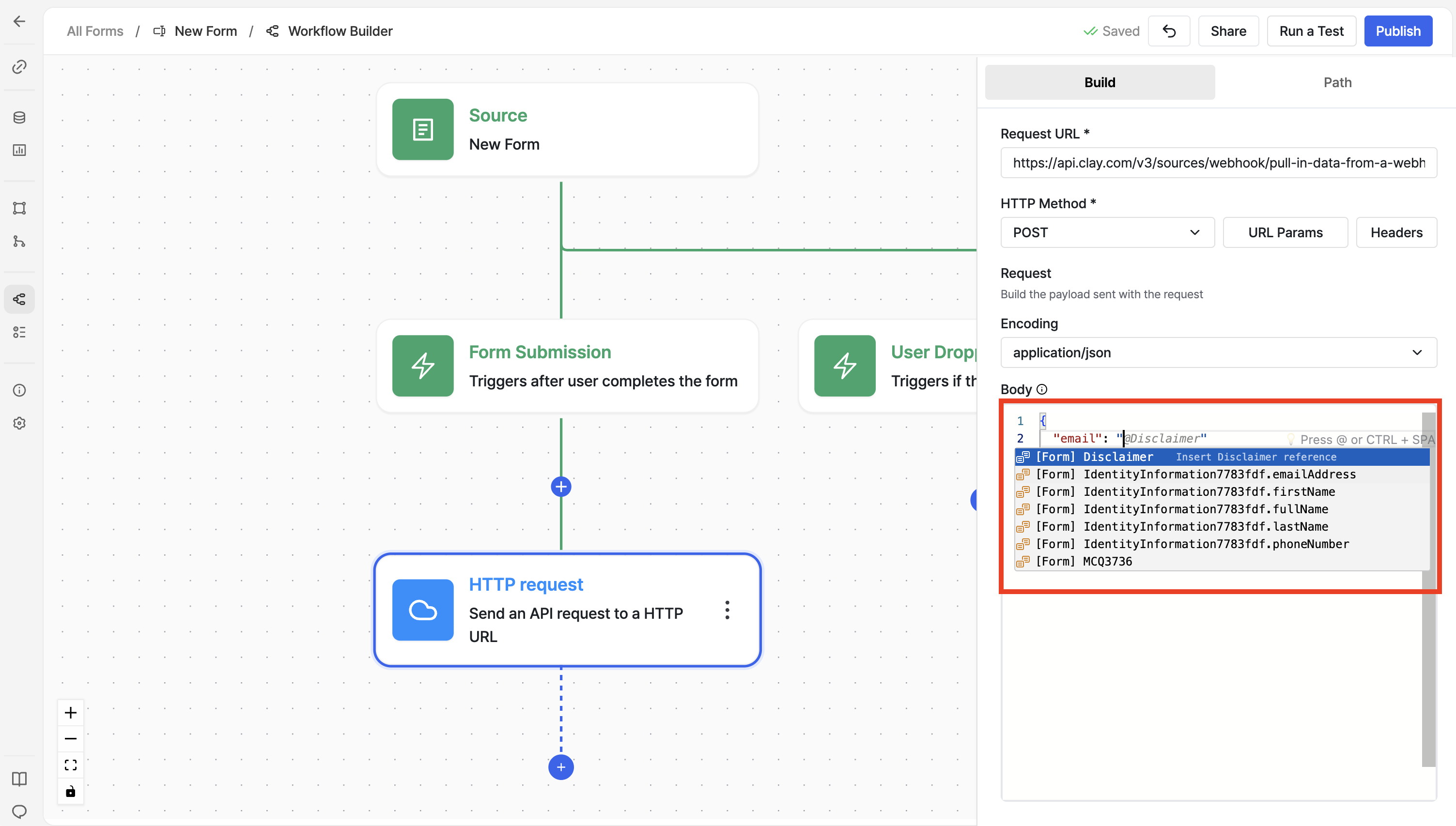
Press @ in the workflow builder and start typing to see available form
fields you can use in the JSON body.
Step 5: Verify Data in Clay
- Save your Surface workflow
- Submit a test response through your Surface Form
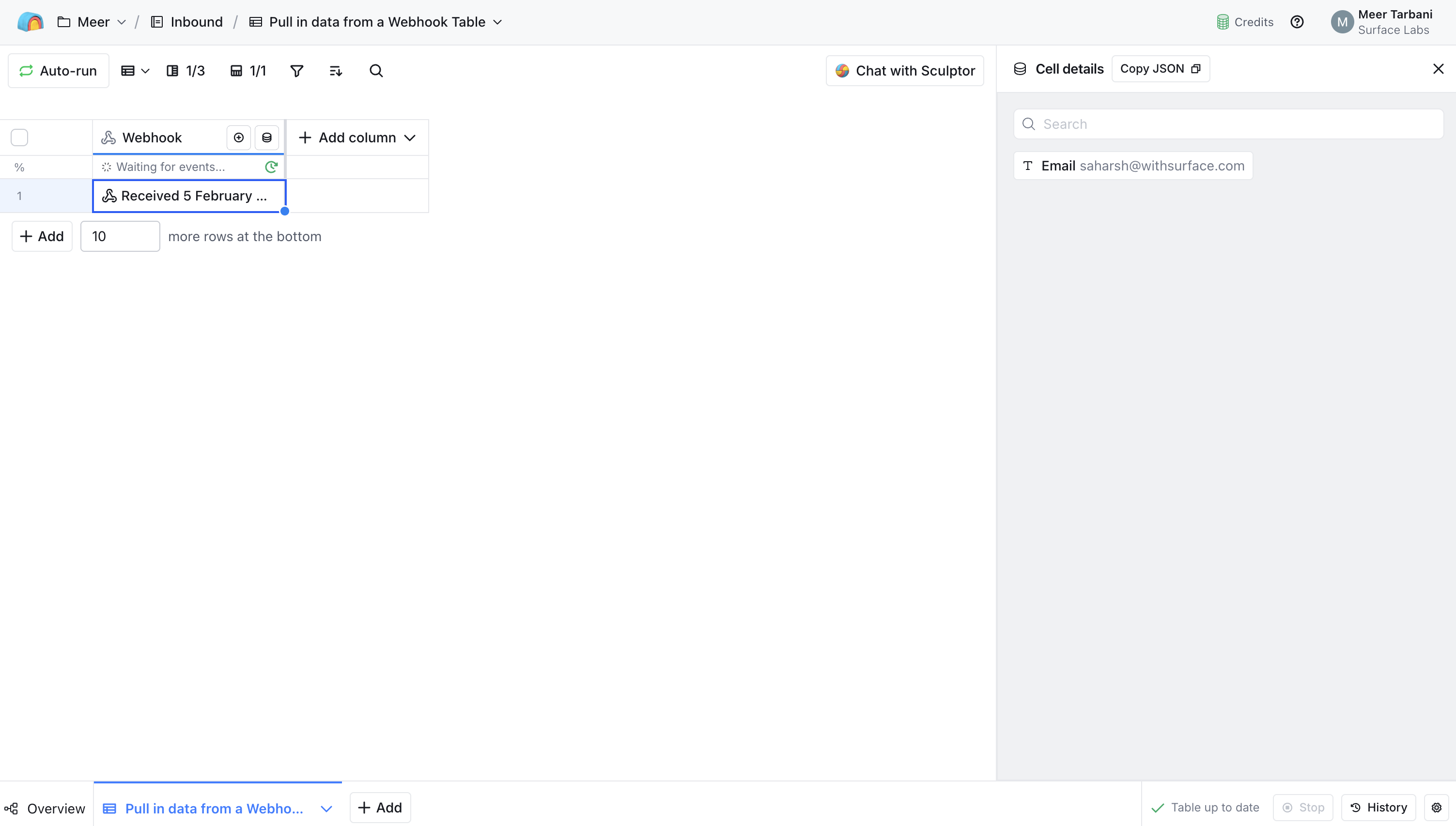
- In Clay, check your webhook table. You should see the new row with the data sent from Surface
Troubleshooting
If data isn't appearing in Clay:
- Confirm the Webhook URL in the HTTP Request action matches the URL from Clay exactly
- Ensure
Send response asis set toJSONin Clay and your request body is valid JSON - Check that the JSON keys in the body match the columns or fields Clay expects
- Review workflow logs in Surface to see if the request was sent and whether Clay returned any errors
Ready to Get Started?
See it on your own site, or open the app and build the first form.