# Send Data to Surface using Webhooks
This guide will walk you through the process of sending data to Surface using webhooks. We'll specifically demonstrate this using Framer Forms as an example.
## Step 1: Configure Webhooks in Surface [#step-1-configure-webhooks-in-surface]
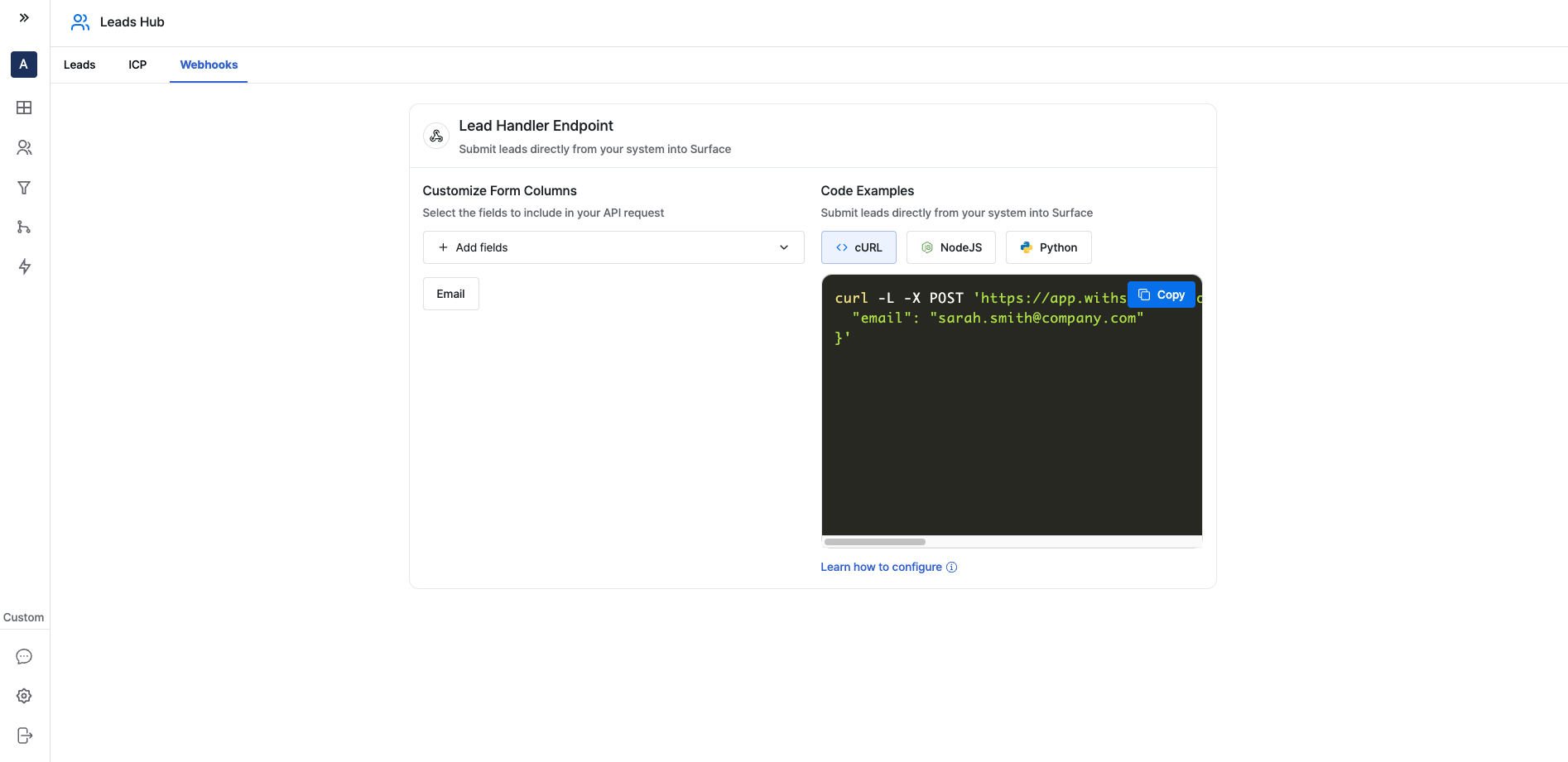 1. Log in to your Surface account
2. Navigate to Leads Hub from the side navigation bar
3. Click on the "Webhooks" tab
### Configure Fields [#configure-fields]
1. Log in to your Surface account
2. Navigate to Leads Hub from the side navigation bar
3. Click on the "Webhooks" tab
### Configure Fields [#configure-fields]
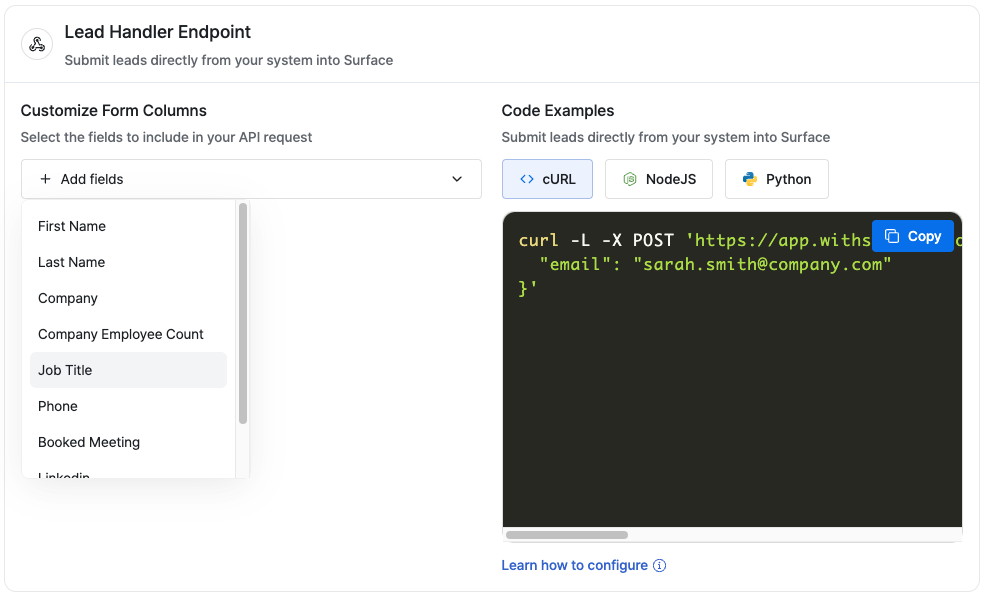 Click on `+ Add fields` and select the fields you want to receive from webhooks from the dropdown.
### Copy Webhook URL [#copy-webhook-url]
Click on `+ Add fields` and select the fields you want to receive from webhooks from the dropdown.
### Copy Webhook URL [#copy-webhook-url]
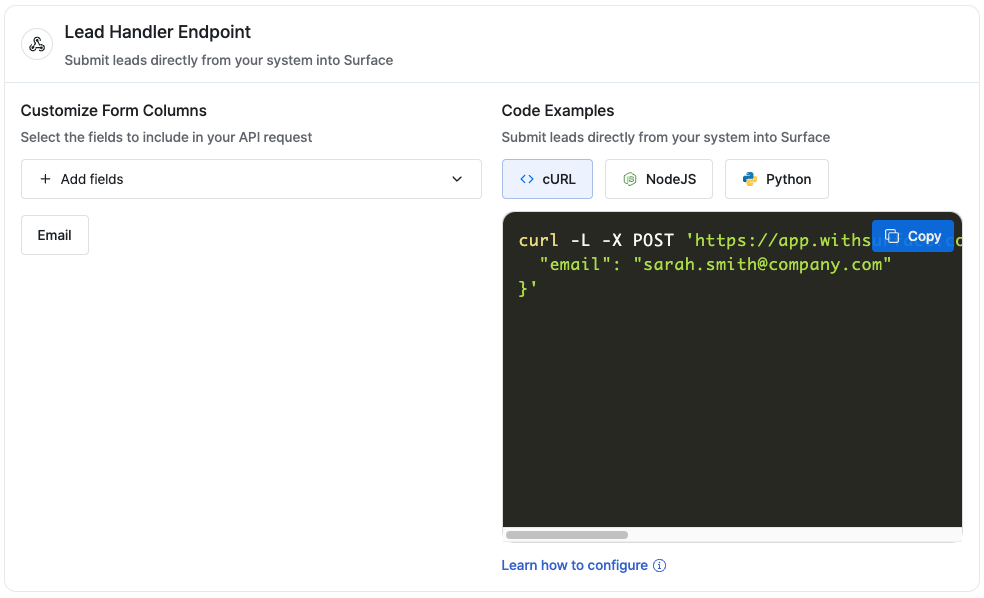 Copy the webhook URL provided in the snippets section (available for CURL, NodeJS, and Python).
## Step 2: Set Up Framer Form [#step-2-set-up-framer-form]
Copy the webhook URL provided in the snippets section (available for CURL, NodeJS, and Python).
## Step 2: Set Up Framer Form [#step-2-set-up-framer-form]
 1. Open your Framer project
2. Add a Form Component from the Component Selector
### Configure Form Component [#configure-form-component]
1. Open your Framer project
2. Add a Form Component from the Component Selector
### Configure Form Component [#configure-form-component]
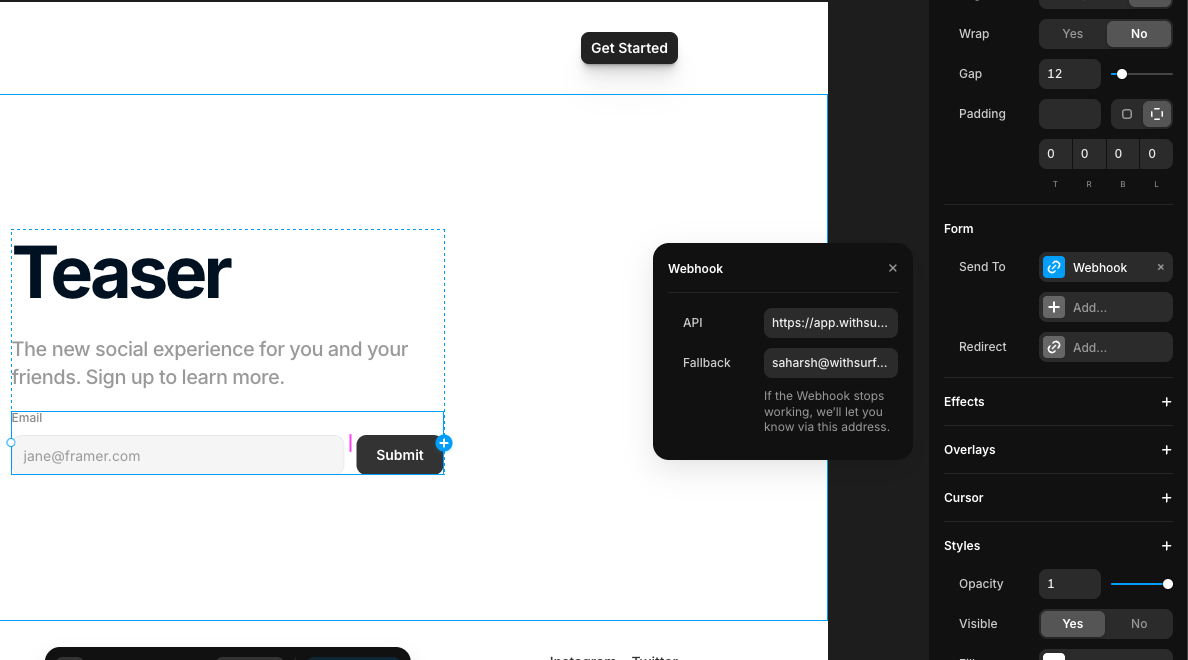 Select the Form Component and go to the right-side config sidebar, under the "Form" section:
* Select "Webhook" as the Send To option
* Paste the webhook URL you copied from Surface
### Configure Form Fields [#configure-form-fields]
Select the Form Component and go to the right-side config sidebar, under the "Form" section:
* Select "Webhook" as the Send To option
* Paste the webhook URL you copied from Surface
### Configure Form Fields [#configure-form-fields]
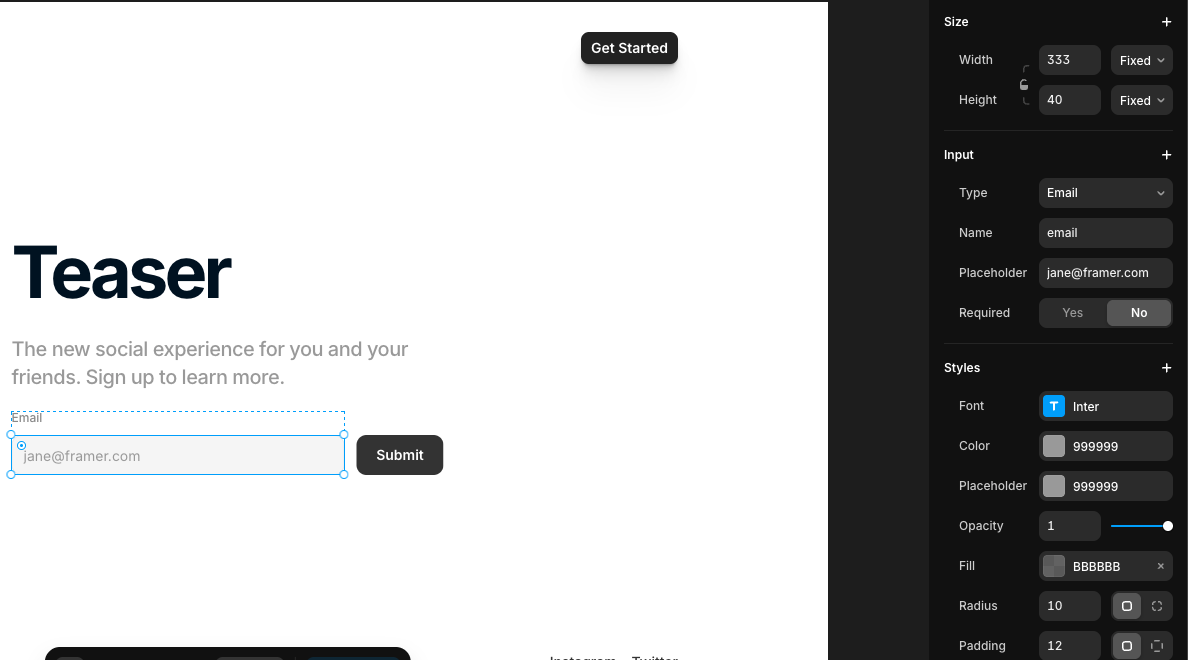 1. Select each input field in your form
2. In the config sidebar for each field:
* Set the appropriate Type (text, email, phone, etc.)
* The `Name` field should match the fields you configured in Surface
## Step 3: Test and Verify [#step-3-test-and-verify]
1. Select each input field in your form
2. In the config sidebar for each field:
* Set the appropriate Type (text, email, phone, etc.)
* The `Name` field should match the fields you configured in Surface
## Step 3: Test and Verify [#step-3-test-and-verify]
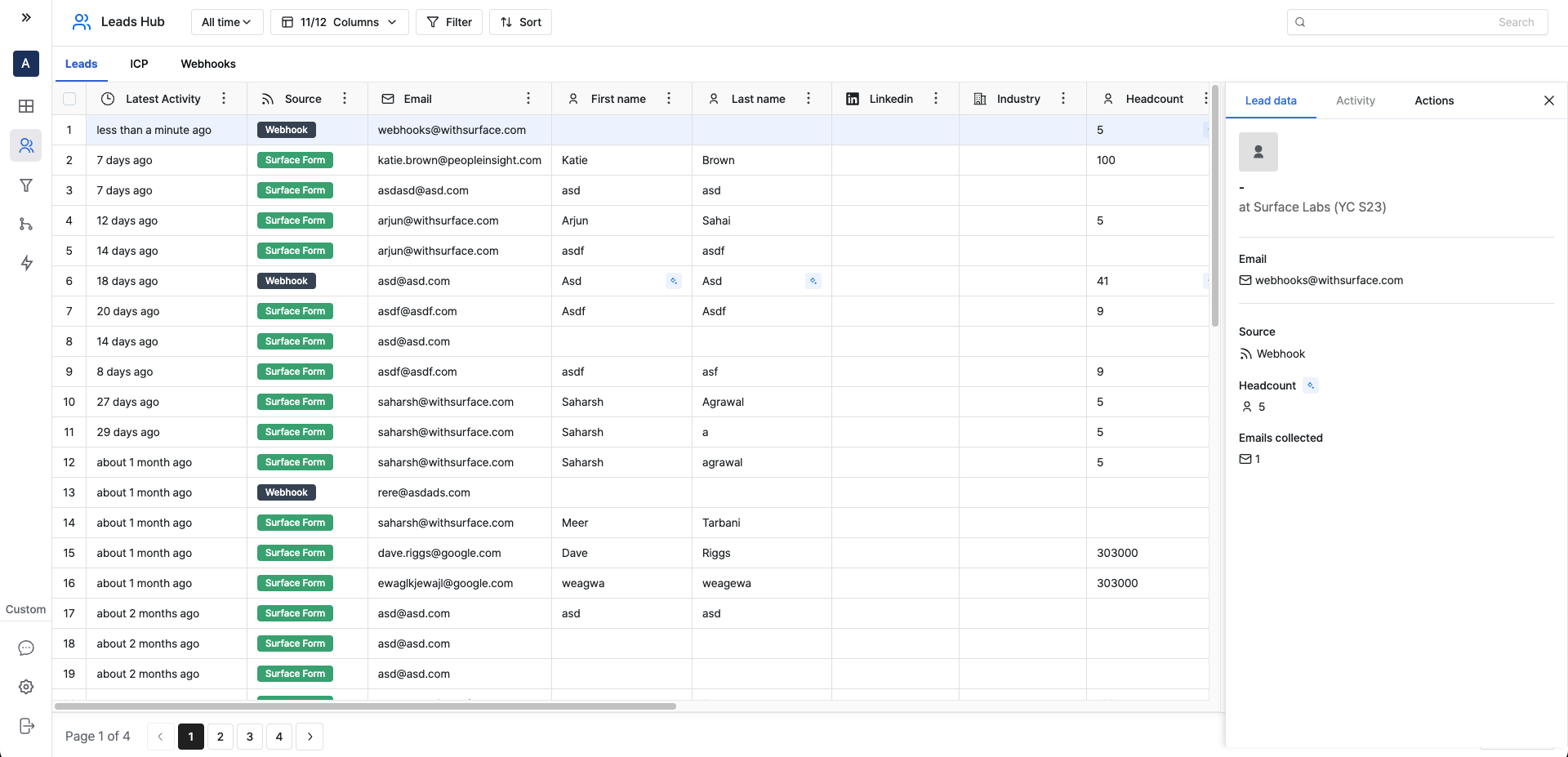 1. Publish your website
2. Test the form by submitting sample data
3. Check your Surface Leads Hub to verify that:
* The data is received correctly
* The lead information is properly enriched
## Troubleshooting [#troubleshooting]
If you're not seeing the data in Surface Leads Hub:
1. Verify the webhook URL is correct
2. Check that the field names in your form match the configured fields in Surface
3. Check the network tab in your browser's developer tools for any errors when submitting the form
1. Publish your website
2. Test the form by submitting sample data
3. Check your Surface Leads Hub to verify that:
* The data is received correctly
* The lead information is properly enriched
## Troubleshooting [#troubleshooting]
If you're not seeing the data in Surface Leads Hub:
1. Verify the webhook URL is correct
2. Check that the field names in your form match the configured fields in Surface
3. Check the network tab in your browser's developer tools for any errors when submitting the form