# Send Data to Clay
## Step 1: Create a Webhook Table in Clay [#step-1-create-a-webhook-table-in-clay]
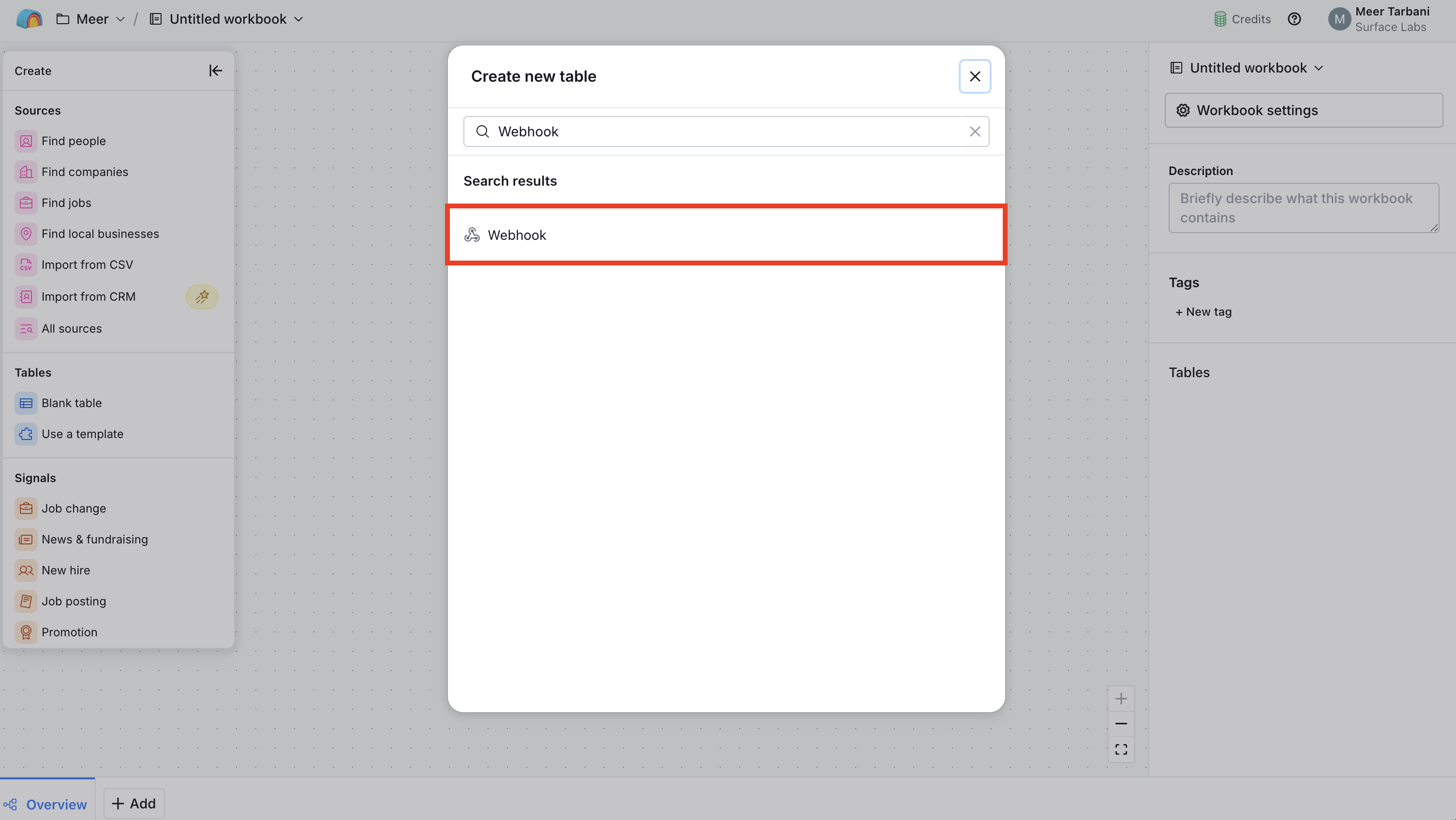
1. In Clay, create a new table
2. Add **Webhook** as the data source for the table
 ## Step 2: Copy the Webhook URL and Set Response Format [#step-2-copy-the-webhook-url-and-set-response-format]
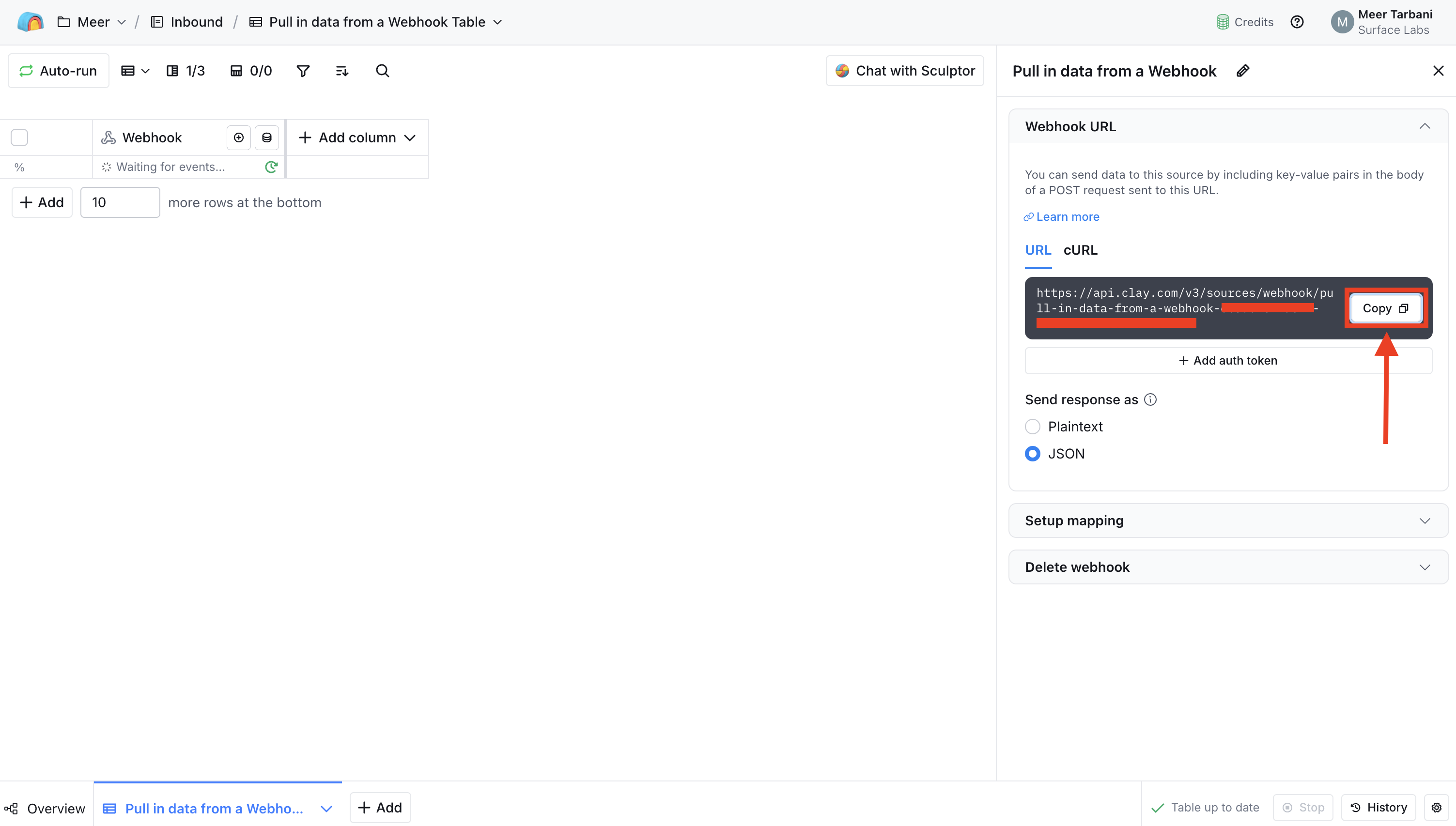
1. In the Webhook source configuration, find the **Webhook URL**
2. Copy the Webhook URL — you'll paste this into Surface in a later step
3. Set `Send response as` to `JSON` so Clay expects and parses JSON payloads
## Step 2: Copy the Webhook URL and Set Response Format [#step-2-copy-the-webhook-url-and-set-response-format]
1. In the Webhook source configuration, find the **Webhook URL**
2. Copy the Webhook URL — you'll paste this into Surface in a later step
3. Set `Send response as` to `JSON` so Clay expects and parses JSON payloads
 ## Step 3: Add an HTTP Request Action in Surface Workflow Builder [#step-3-add-an-http-request-action-in-surface-workflow-builder]
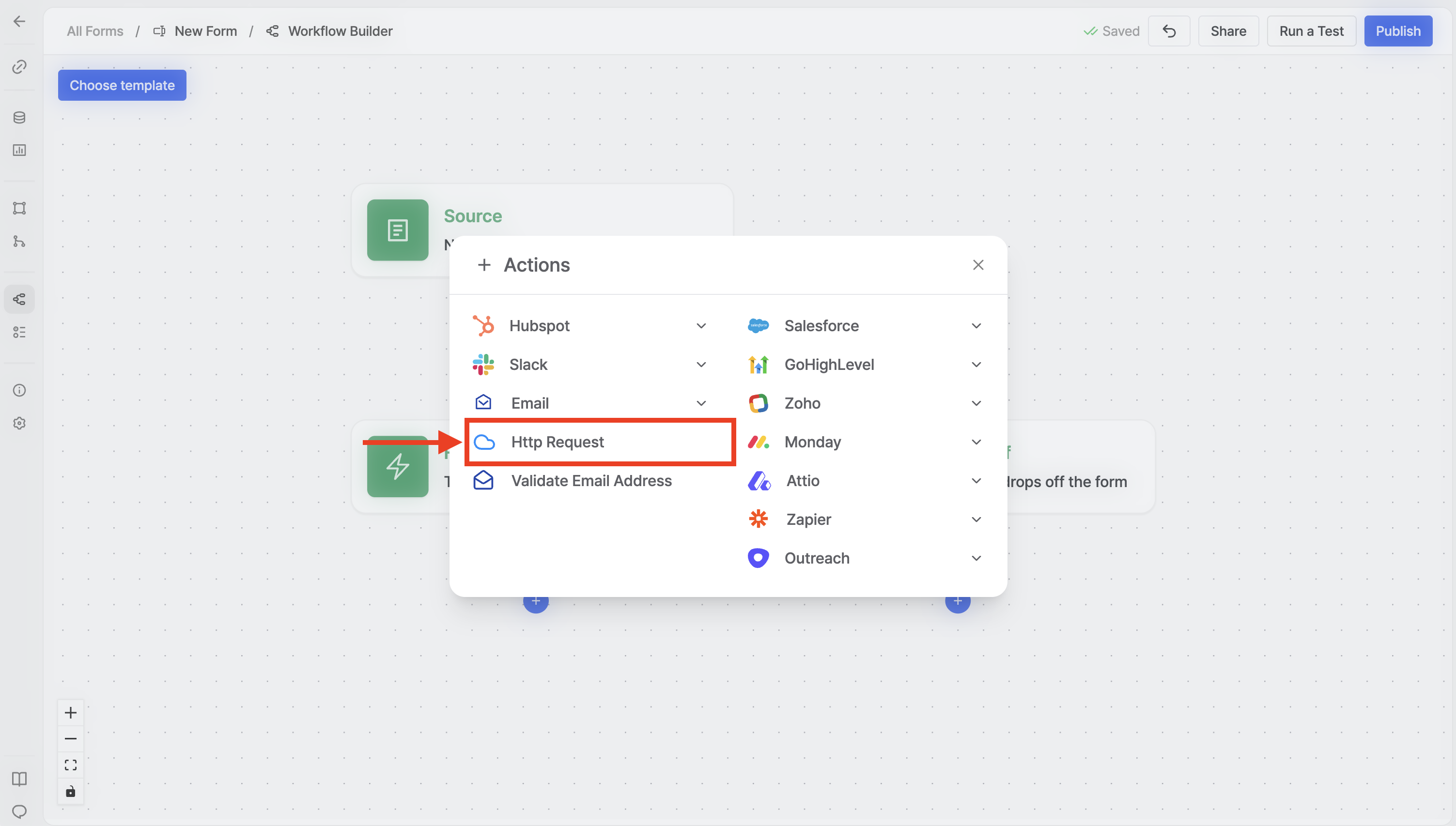
1. Open the **Workflow Builder** in the Surface Platform for your form
2. Add a new action to your workflow
3. Select **HTTP Request** from the available actions
## Step 3: Add an HTTP Request Action in Surface Workflow Builder [#step-3-add-an-http-request-action-in-surface-workflow-builder]
1. Open the **Workflow Builder** in the Surface Platform for your form
2. Add a new action to your workflow
3. Select **HTTP Request** from the available actions
 ## Step 4: Configure the HTTP Request Action [#step-4-configure-the-http-request-action]
Configure the HTTP Request action with the following settings:
1. **Request URL** — Paste the Webhook URL you copied from Clay
2. **HTTP Method** — Set to **POST**
3. **Body** — Add a JSON object where each key is the field name Clay expects and each value is the form data. Use the `@` symbol in the workflow builder to insert form variables (e.g. `@email`, `@name`).
## Step 4: Configure the HTTP Request Action [#step-4-configure-the-http-request-action]
Configure the HTTP Request action with the following settings:
1. **Request URL** — Paste the Webhook URL you copied from Clay
2. **HTTP Method** — Set to **POST**
3. **Body** — Add a JSON object where each key is the field name Clay expects and each value is the form data. Use the `@` symbol in the workflow builder to insert form variables (e.g. `@email`, `@name`).
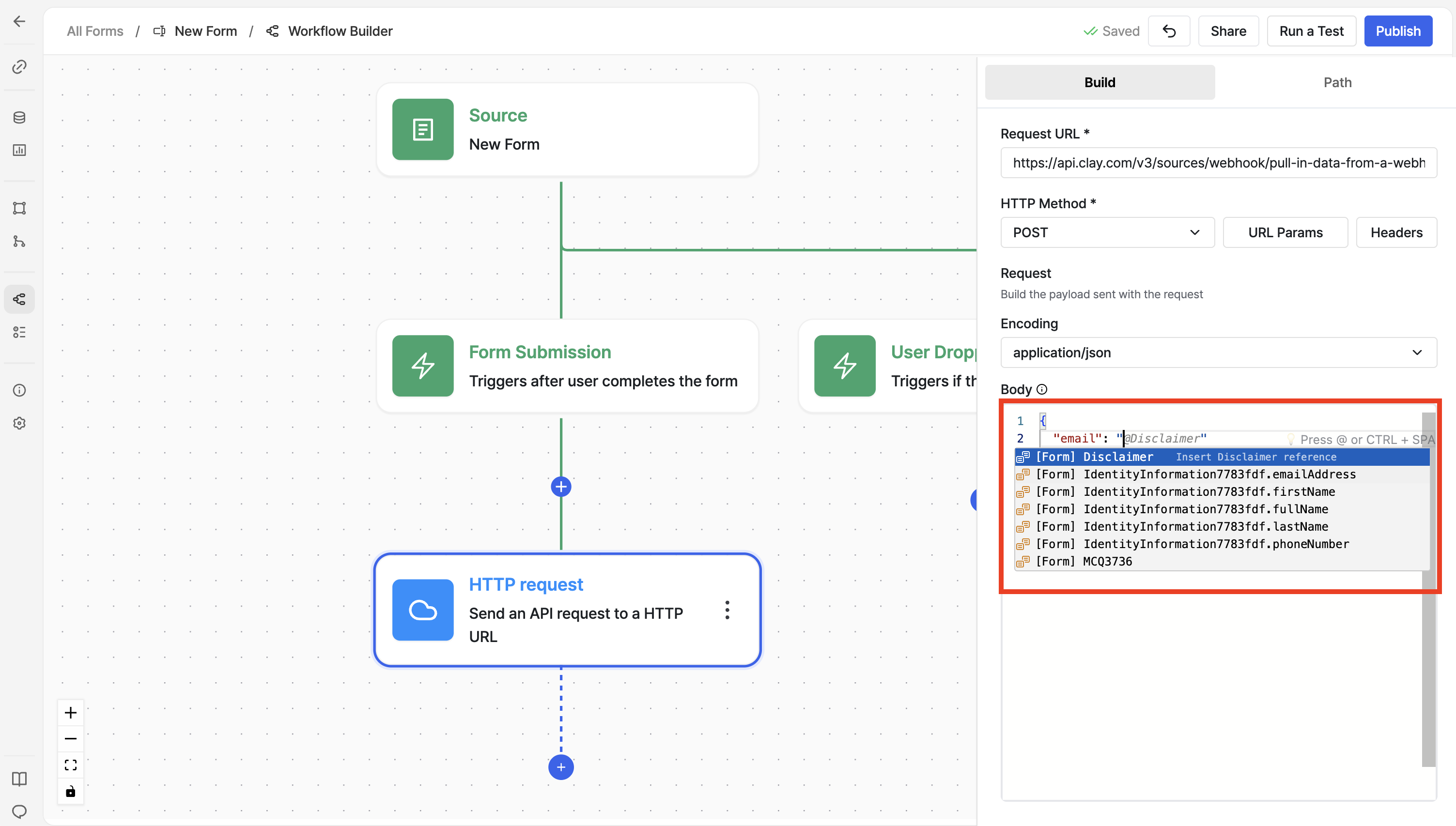 Press `@` in the workflow builder and start typing to see available form
fields you can use in the JSON body.
## Step 5: Verify Data in Clay [#step-5-verify-data-in-clay]
1. Save your Surface workflow
2. Submit a test response through your Surface Form
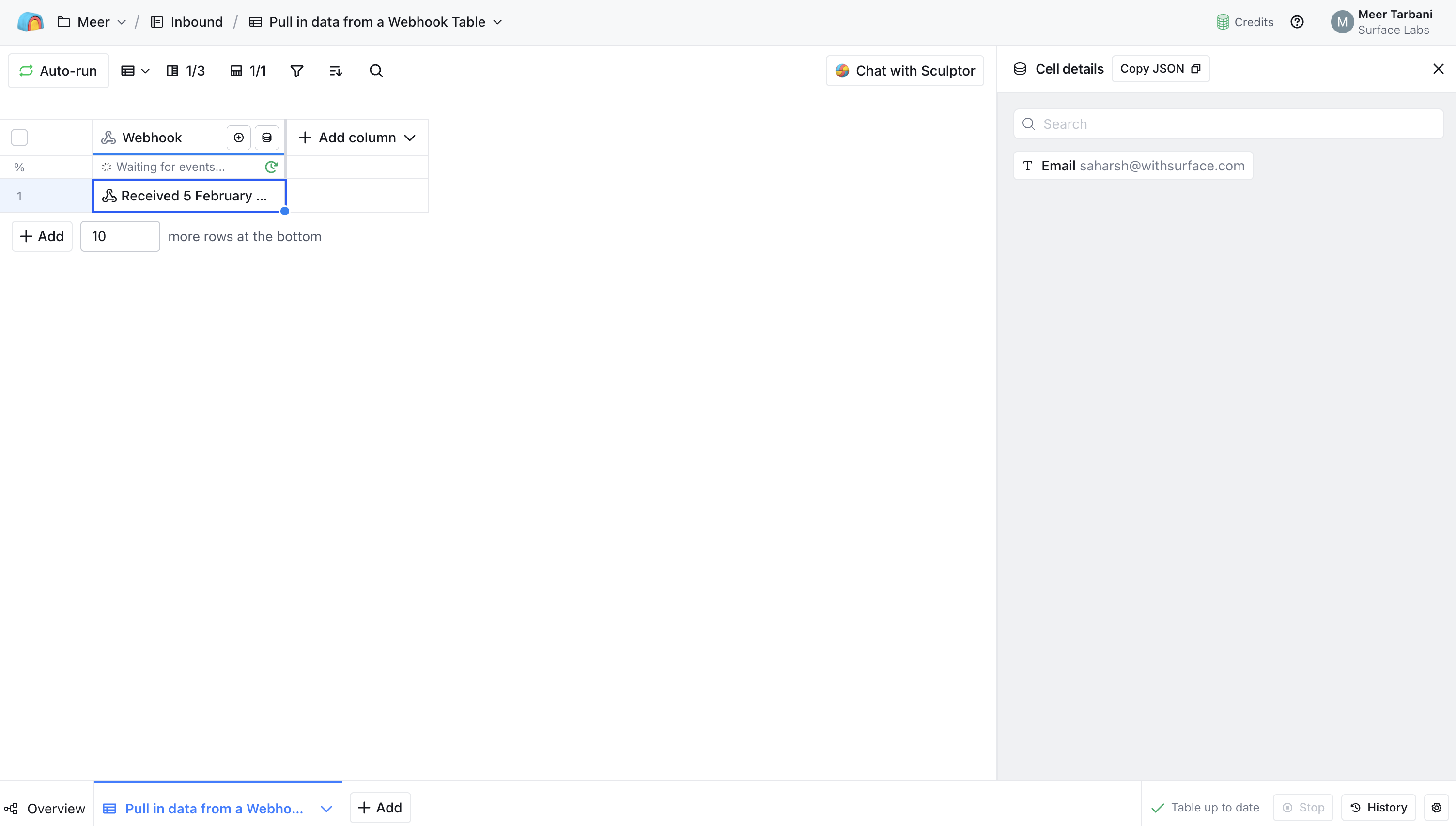
3. In Clay, check your webhook table — you should see the new row with the data sent from Surface
Press `@` in the workflow builder and start typing to see available form
fields you can use in the JSON body.
## Step 5: Verify Data in Clay [#step-5-verify-data-in-clay]
1. Save your Surface workflow
2. Submit a test response through your Surface Form
3. In Clay, check your webhook table — you should see the new row with the data sent from Surface
 ## Troubleshooting [#troubleshooting]
If data isn't appearing in Clay:
* Confirm the Webhook URL in the HTTP Request action matches the URL from Clay exactly
* Ensure `Send response as` is set to `JSON` in Clay and your request body is valid JSON
* Check that the JSON keys in the body match the columns or fields Clay expects
* Review workflow logs in Surface to see if the request was sent and whether Clay returned any errors
## Troubleshooting [#troubleshooting]
If data isn't appearing in Clay:
* Confirm the Webhook URL in the HTTP Request action matches the URL from Clay exactly
* Ensure `Send response as` is set to `JSON` in Clay and your request body is valid JSON
* Check that the JSON keys in the body match the columns or fields Clay expects
* Review workflow logs in Surface to see if the request was sent and whether Clay returned any errors