# Enable Cloudflare Turnstile
## Step 1: Navigate to Cloudflare Turnstile [#step-1-navigate-to-cloudflare-turnstile]
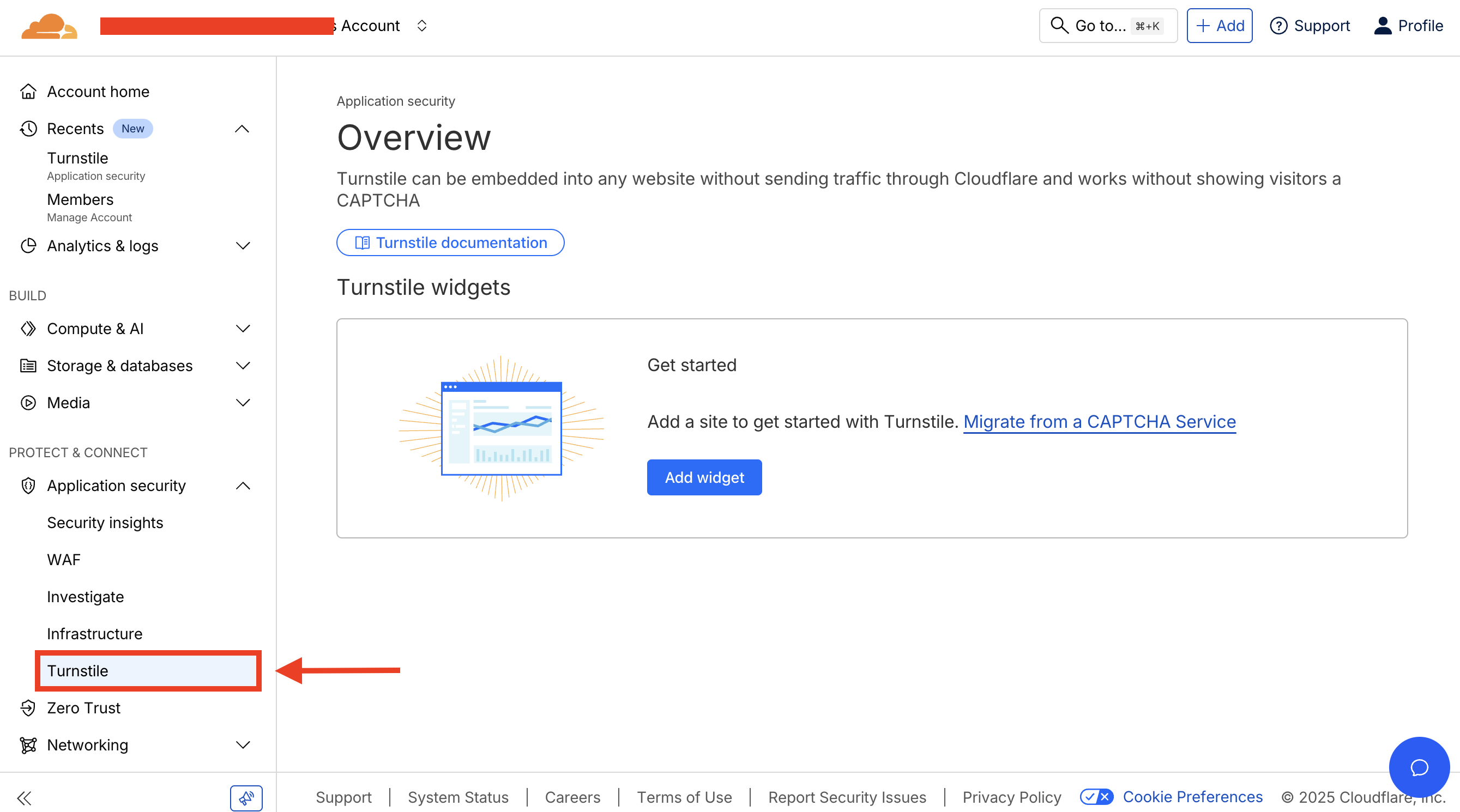 1. Login to [Cloudflare Dashboard](https://dash.cloudflare.com/)
2. Navigate to **Protect & Connect > Application security > Turnstile**
## Step 2: Add New Widget [#step-2-add-new-widget]
1. Login to [Cloudflare Dashboard](https://dash.cloudflare.com/)
2. Navigate to **Protect & Connect > Application security > Turnstile**
## Step 2: Add New Widget [#step-2-add-new-widget]
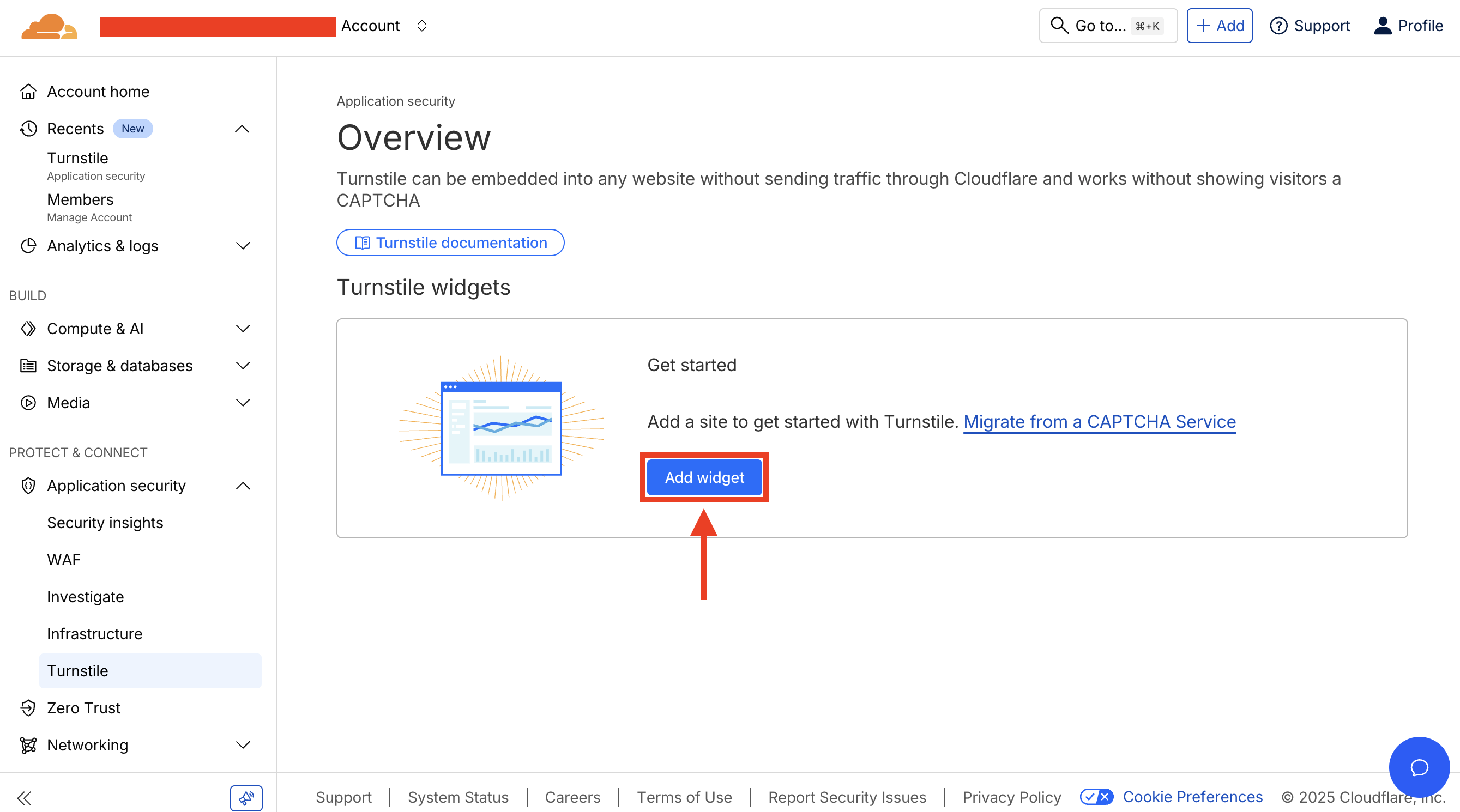 Click on **Add new widget** to create a new Turnstile widget.
## Step 3: Configure Widget Settings [#step-3-configure-widget-settings]
Click on **Add new widget** to create a new Turnstile widget.
## Step 3: Configure Widget Settings [#step-3-configure-widget-settings]
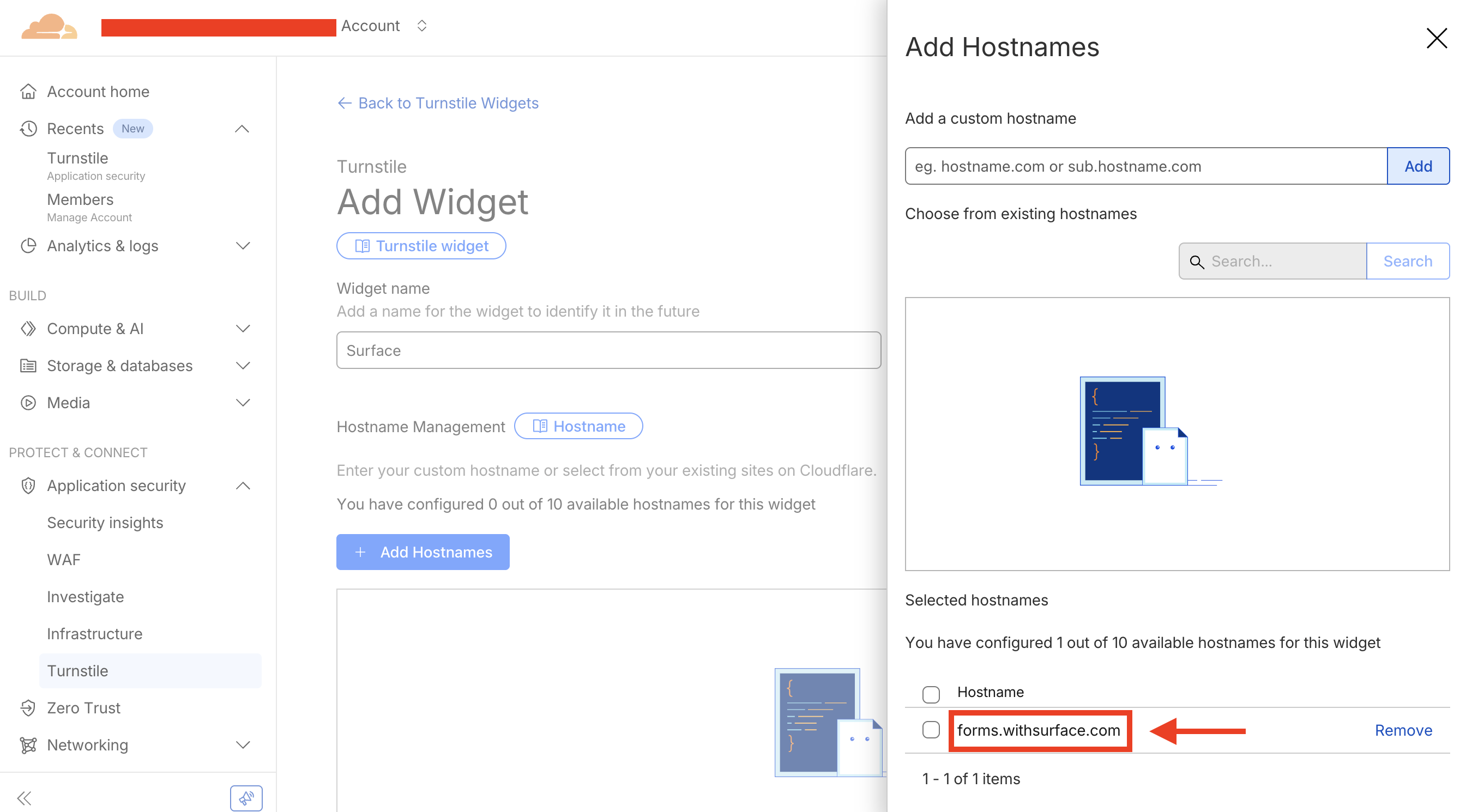 1. Set up the widget configurations
2. Add `forms.withsurface.com` in the **Hostnames** field for the widget
3. Click `Add` button to add the host
## Step 4: Create Widget and Copy Keys [#step-4-create-widget-and-copy-keys]
1. Set up the widget configurations
2. Add `forms.withsurface.com` in the **Hostnames** field for the widget
3. Click `Add` button to add the host
## Step 4: Create Widget and Copy Keys [#step-4-create-widget-and-copy-keys]
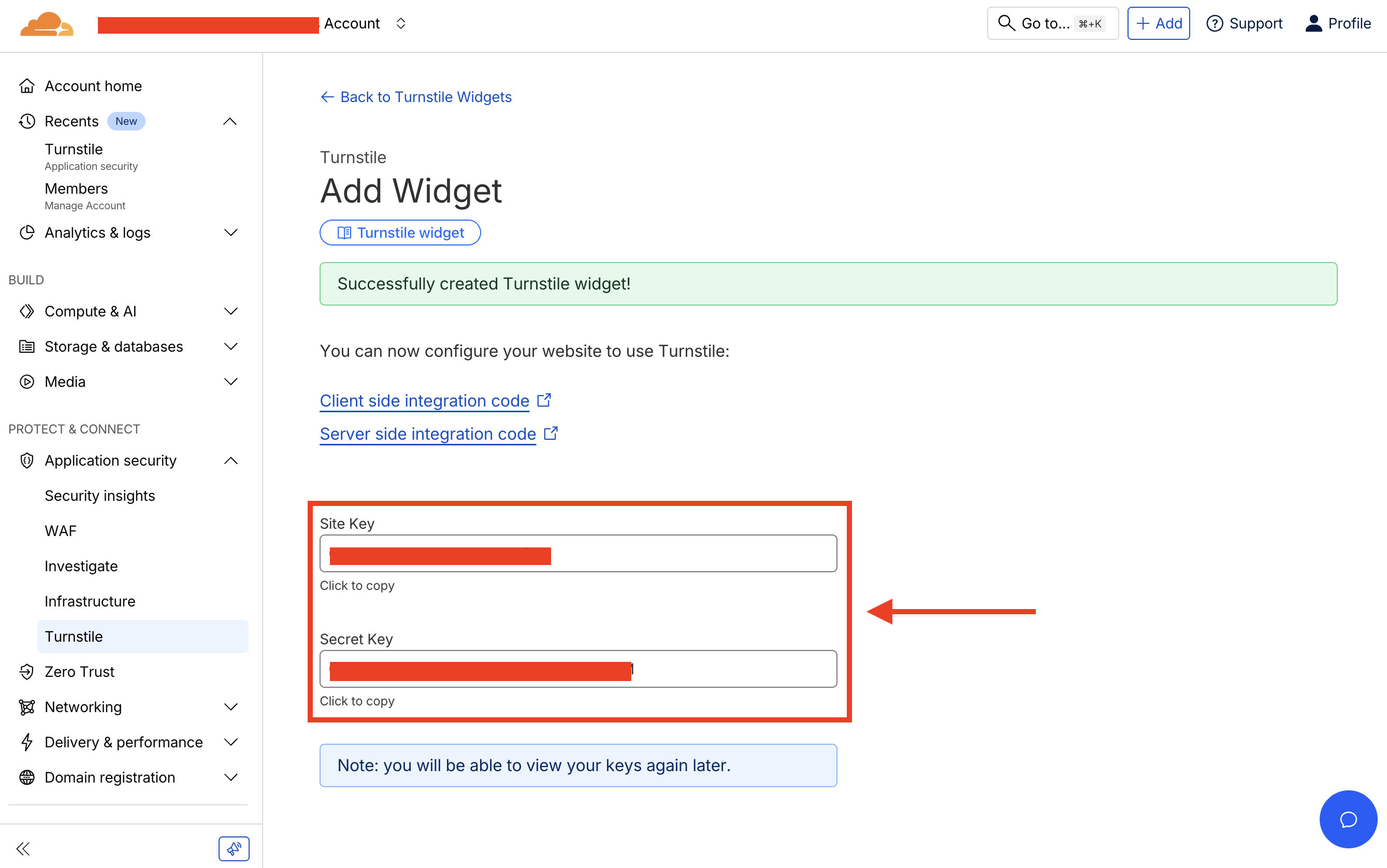 1. Click **Create** to create the widget
2. After creating the widget, copy the **Site Key** and **Secret Key**
* These keys will be used to configure Turnstile in your Surface Form settings
## Step 5: Configure Turnstile in Surface Form Settings [#step-5-configure-turnstile-in-surface-form-settings]
1. Click **Create** to create the widget
2. After creating the widget, copy the **Site Key** and **Secret Key**
* These keys will be used to configure Turnstile in your Surface Form settings
## Step 5: Configure Turnstile in Surface Form Settings [#step-5-configure-turnstile-in-surface-form-settings]
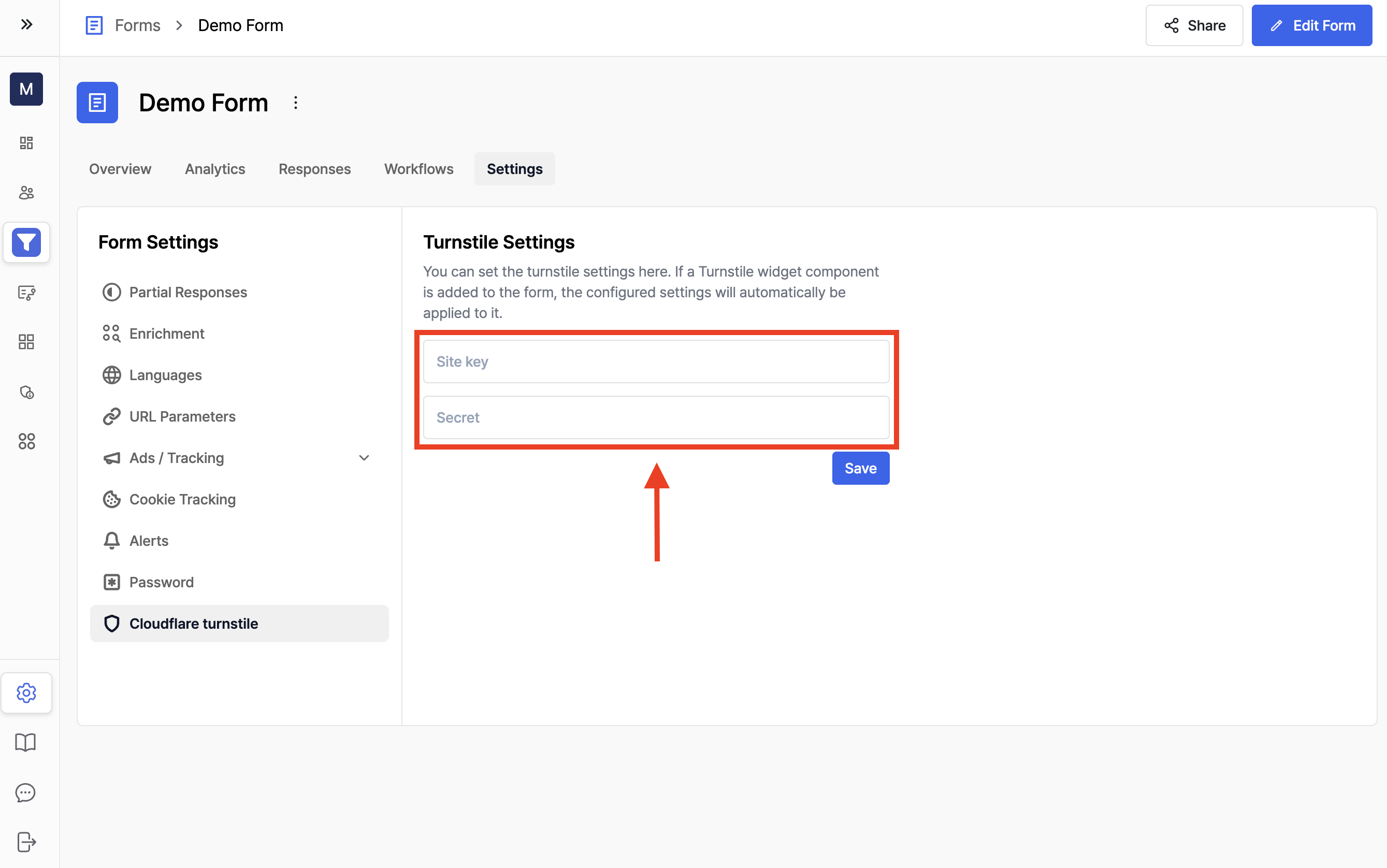 1. Navigate to your Surface Form settings page
2. Go to **Cloudflare Turnstile** section
3. Paste the **Site Key** and **Secret Key** that you copied in Step 4
4. Click **Save** to save the settings
## Step 6: Add Turnstile Widget to Your Form [#step-6-add-turnstile-widget-to-your-form]
1. Navigate to your Surface Form settings page
2. Go to **Cloudflare Turnstile** section
3. Paste the **Site Key** and **Secret Key** that you copied in Step 4
4. Click **Save** to save the settings
## Step 6: Add Turnstile Widget to Your Form [#step-6-add-turnstile-widget-to-your-form]
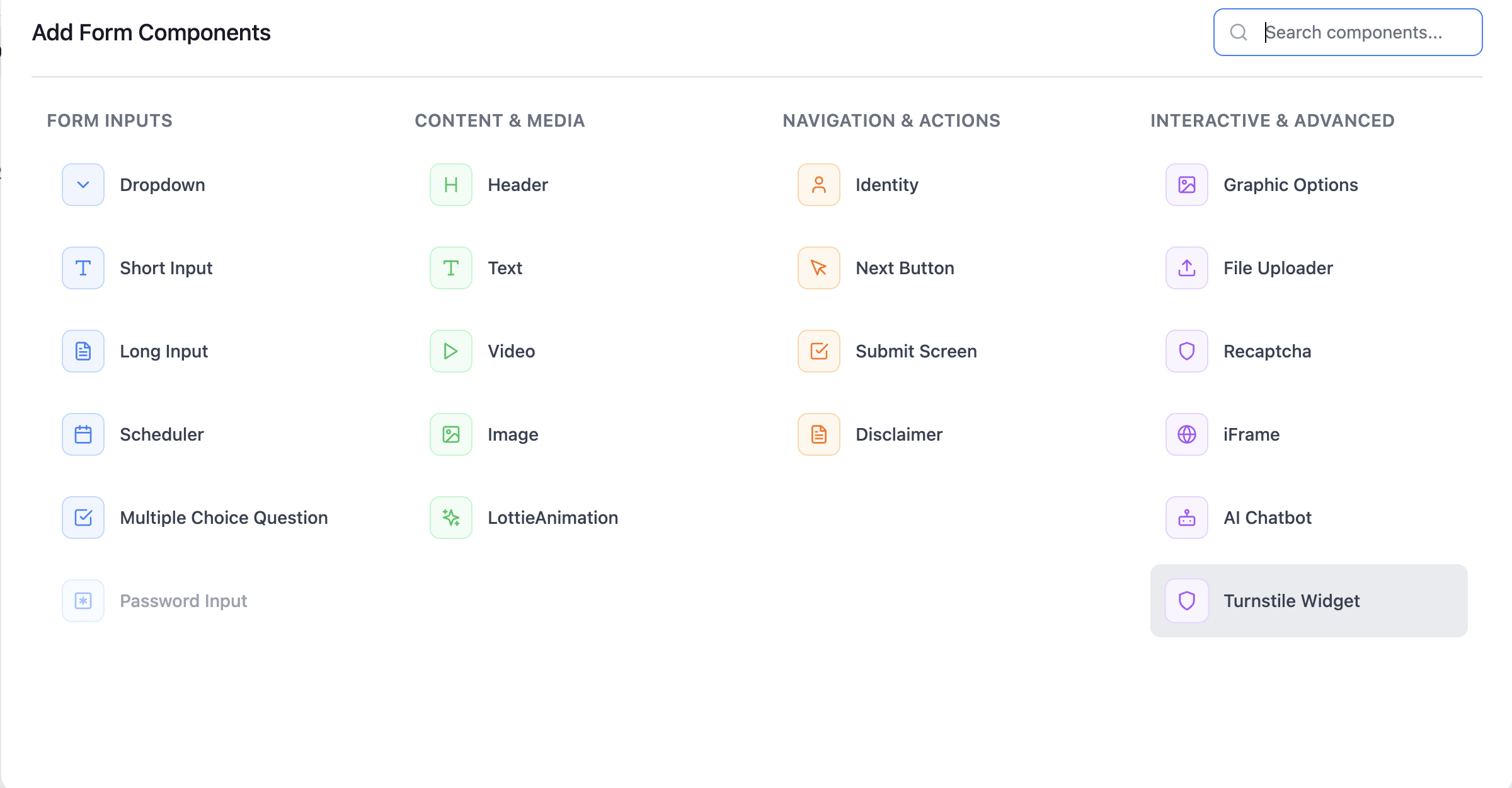 1. In the Form Builder, navigate to the step where you want to add the Turnstile widget
2. Click **+ Add component** or **Copy existing component**
3. Select the **Turnstile** widget component from the component list
4. The Turnstile widget will now appear in your form and will be validated when users submit the form
1. In the Form Builder, navigate to the step where you want to add the Turnstile widget
2. Click **+ Add component** or **Copy existing component**
3. Select the **Turnstile** widget component from the component list
4. The Turnstile widget will now appear in your form and will be validated when users submit the form