# Email Input Field Trigger
This feature requires paid tier of framer!
## 1. Create Surface Constructor [#1-create-surface-constructor]
1. In Framer, go to project `settings`.
2. Scroll down to `Custom Code` section.
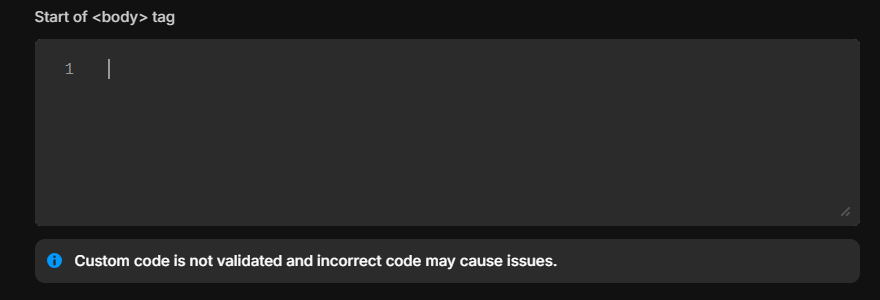 Add the following code in the `End of tag` section.
Modify the Surface Form Embedding Script to include the `data-question-id` attribute.
You must replace the **``** within **`data-question-id`** attribute below with the question ID from the Surface Form Builder.
Add the following code in the `End of tag` section.
Modify the Surface Form Embedding Script to include the `data-question-id` attribute.
You must replace the **``** within **`data-question-id`** attribute below with the question ID from the Surface Form Builder.
 ```html
```
## 2. Add the Form Component [#2-add-the-form-component]
1. In Framer, click on **`insert`** to add new component inside the website.
2. Select **`Form Builder`** from the list of components.
```html
```
## 2. Add the Form Component [#2-add-the-form-component]
1. In Framer, click on **`insert`** to add new component inside the website.
2. Select **`Form Builder`** from the list of components.
 ## 3. Create new code override for the form component [#3-create-new-code-override-for-the-form-component]
 1. In the form component, click on **`properties`** to open the properties panel.
2. Scroll down to **`Code Overrides`** section.
3. Click on **`New File`** to create a new file.
4. Name the file as **`SurfaceFormHandler`**.
5. Click on **`Create`** to create the file.
## 4. Modify the Surface Form Embedding Script [#4-modify-the-surface-form-embedding-script]
In the `SurfaceFormHandler` file, add the following code:
1. In the form component, click on **`properties`** to open the properties panel.
2. Scroll down to **`Code Overrides`** section.
3. Click on **`New File`** to create a new file.
4. Name the file as **`SurfaceFormHandler`**.
5. Click on **`Create`** to create the file.
## 4. Modify the Surface Form Embedding Script [#4-modify-the-surface-form-embedding-script]
In the `SurfaceFormHandler` file, add the following code:
 ```tsx
export function withClass(Component): ComponentType {
return (props) => {
props.className += " surface-form-handler" // Remember to add a space
return
}
}
```
## 5. Apply the code override to the form component [#5-apply-the-code-override-to-the-form-component]
```tsx
export function withClass(Component): ComponentType {
return (props) => {
props.className += " surface-form-handler" // Remember to add a space
return
}
}
```
## 5. Apply the code override to the form component [#5-apply-the-code-override-to-the-form-component]
 1. In the form component, click on **`properties`** to open the properties panel.
2. Scroll down to **`Code Overrides`** section.
3. Select **`SurfaceFormHandler`** from the list of files.
4. Select **`withClass`** from the list of overrides.
5. Click on **`Apply`** to apply the code override.
1. In the form component, click on **`properties`** to open the properties panel.
2. Scroll down to **`Code Overrides`** section.
3. Select **`SurfaceFormHandler`** from the list of files.
4. Select **`withClass`** from the list of overrides.
5. Click on **`Apply`** to apply the code override.