# API based Conditional Logic
Use **External API Data** in the **Logic** tab to create branching form flows based on your own API response (for example: auth checks, eligibility checks, plan gating, or enrichment).
If you're new to conditional logic, start with the overview in [Conditional Logic](/docs/platform/form-builder/conditional-logic).
## Step 1: Open the Logic tab [#step-1-open-the-logic-tab]
1. Open your form in the Surface editor.
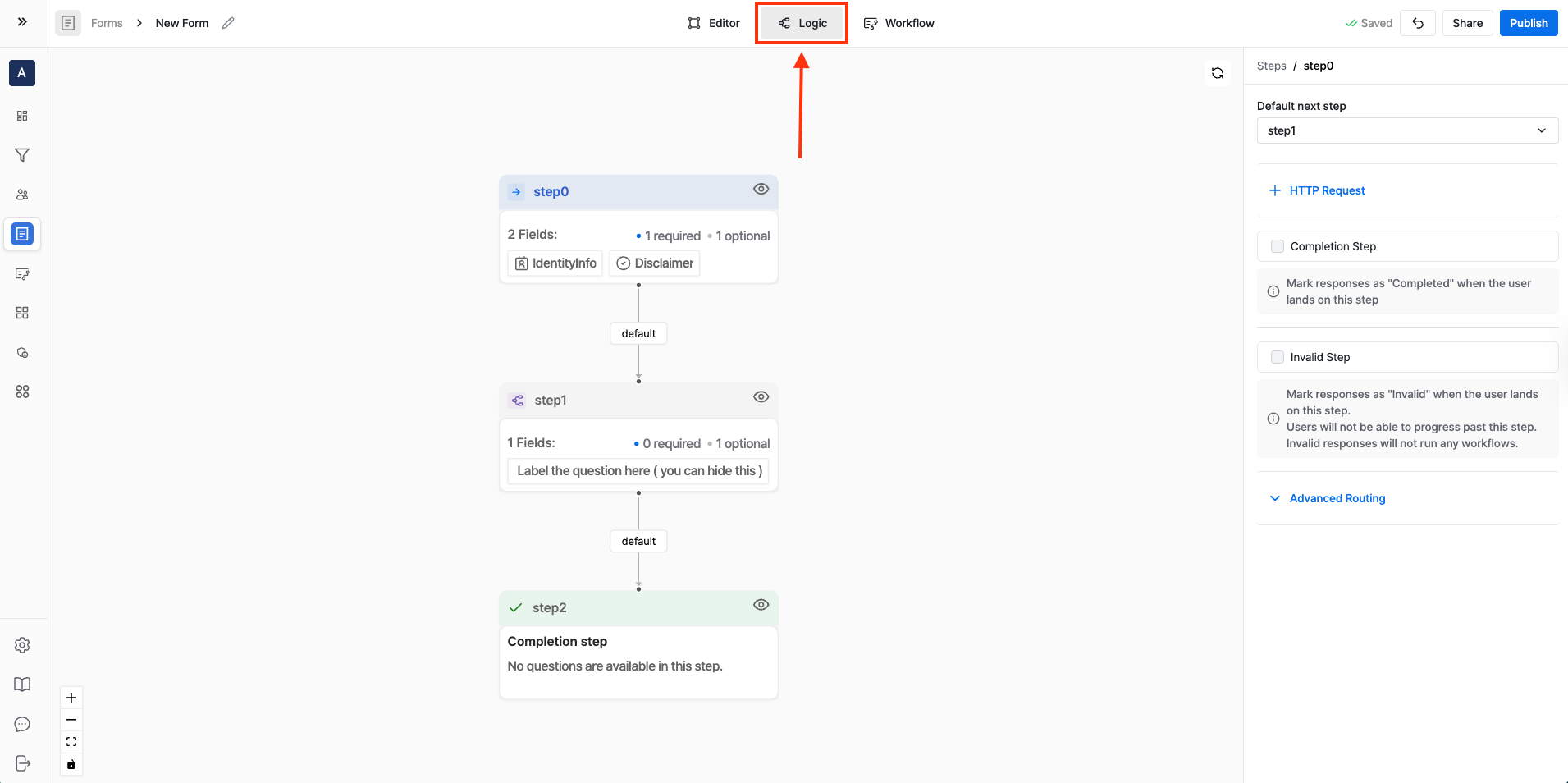
2. Click **Logic** at the top.
3. Select the step where you want to evaluate routing (this is typically the step where the user clicks “Next”).
 ## Step 2: Add an HTTP Request [#step-2-add-an-http-request]
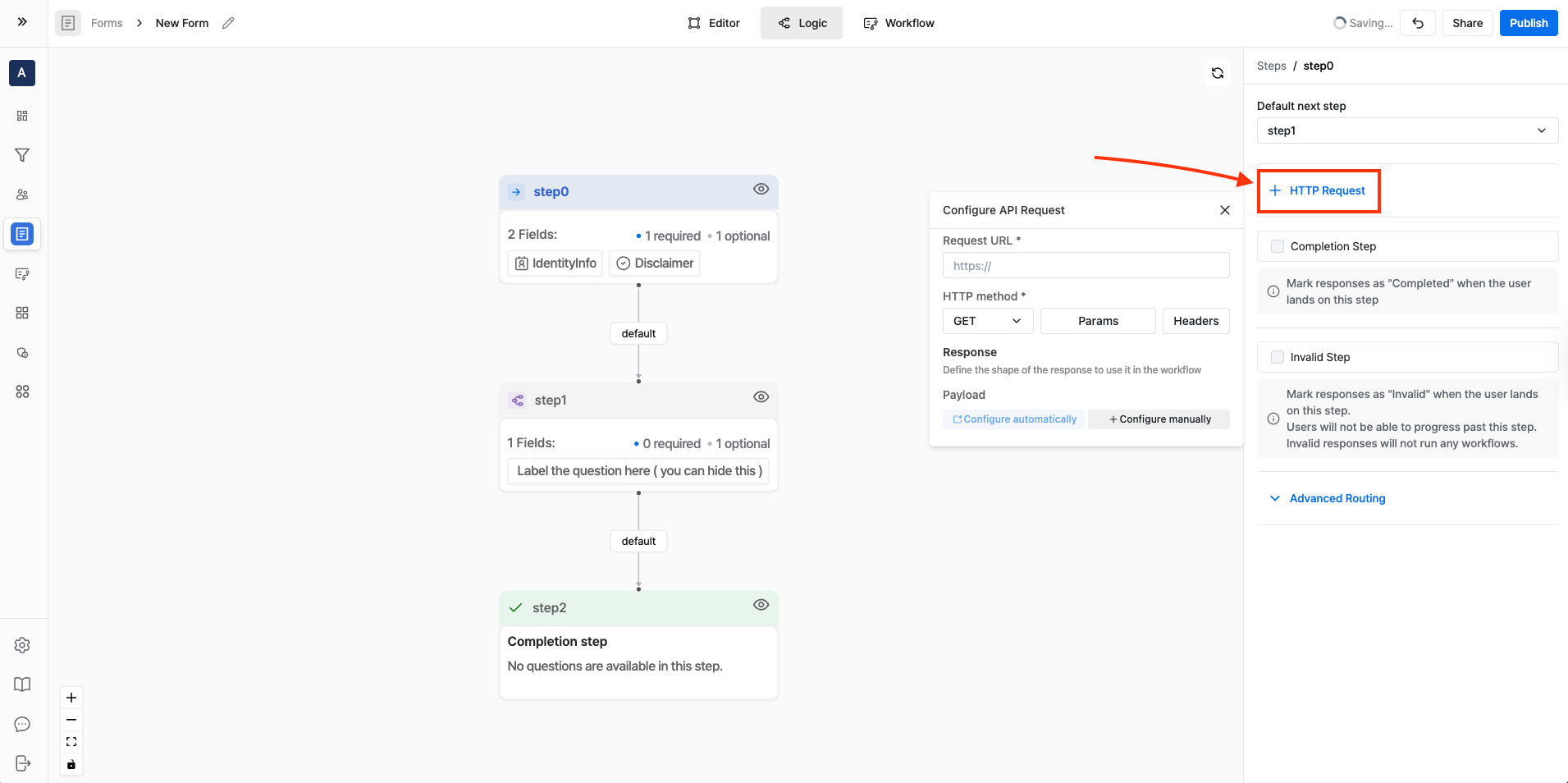
1. With your step selected, click **+ HTTP Request**.
2. Configure the request:
* **URL**: your endpoint (for example, `https://api.yourdomain.com/eligibility`)
* **Method**: `GET` or `POST` depending on your API
* **Params / Headers**: add any required values
* **Body (POST)**: send JSON, using form variables if needed
## Step 2: Add an HTTP Request [#step-2-add-an-http-request]
1. With your step selected, click **+ HTTP Request**.
2. Configure the request:
* **URL**: your endpoint (for example, `https://api.yourdomain.com/eligibility`)
* **Method**: `GET` or `POST` depending on your API
* **Params / Headers**: add any required values
* **Body (POST)**: send JSON, using form variables if needed
 You can use form variables in the URL, Params, Headers, and Body.
## Step 3: Map fields from the API response [#step-3-map-fields-from-the-api-response]
You can use form variables in the URL, Params, Headers, and Body.
## Step 3: Map fields from the API response [#step-3-map-fields-from-the-api-response]
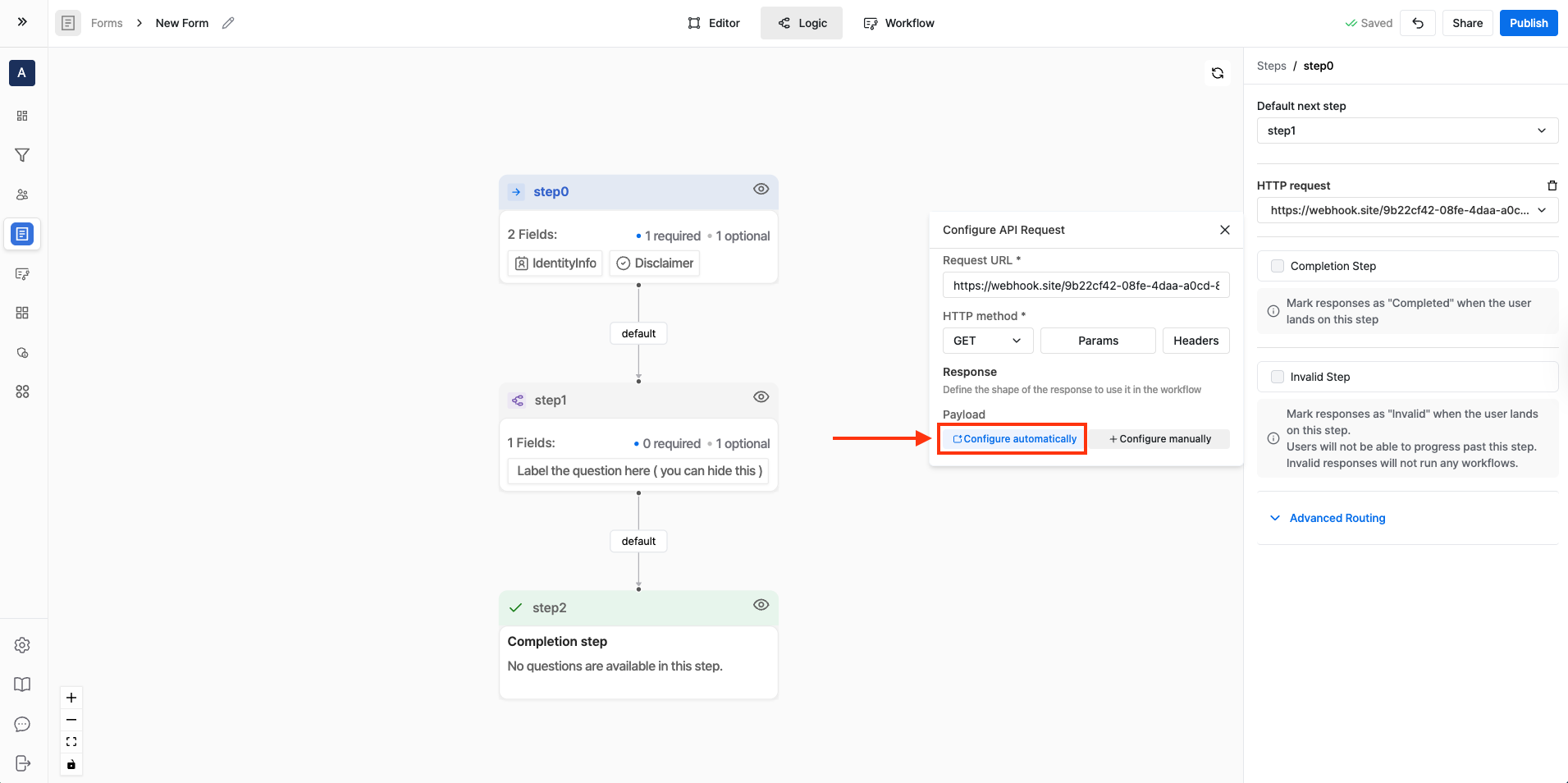 After your request is configured, map values from the JSON response so they're available as **External API Data**.
You can either:
### Automatically Configure the API Response [#automatically-configure-the-api-response]
After your request is configured, map values from the JSON response so they're available as **External API Data**.
You can either:
### Automatically Configure the API Response [#automatically-configure-the-api-response]
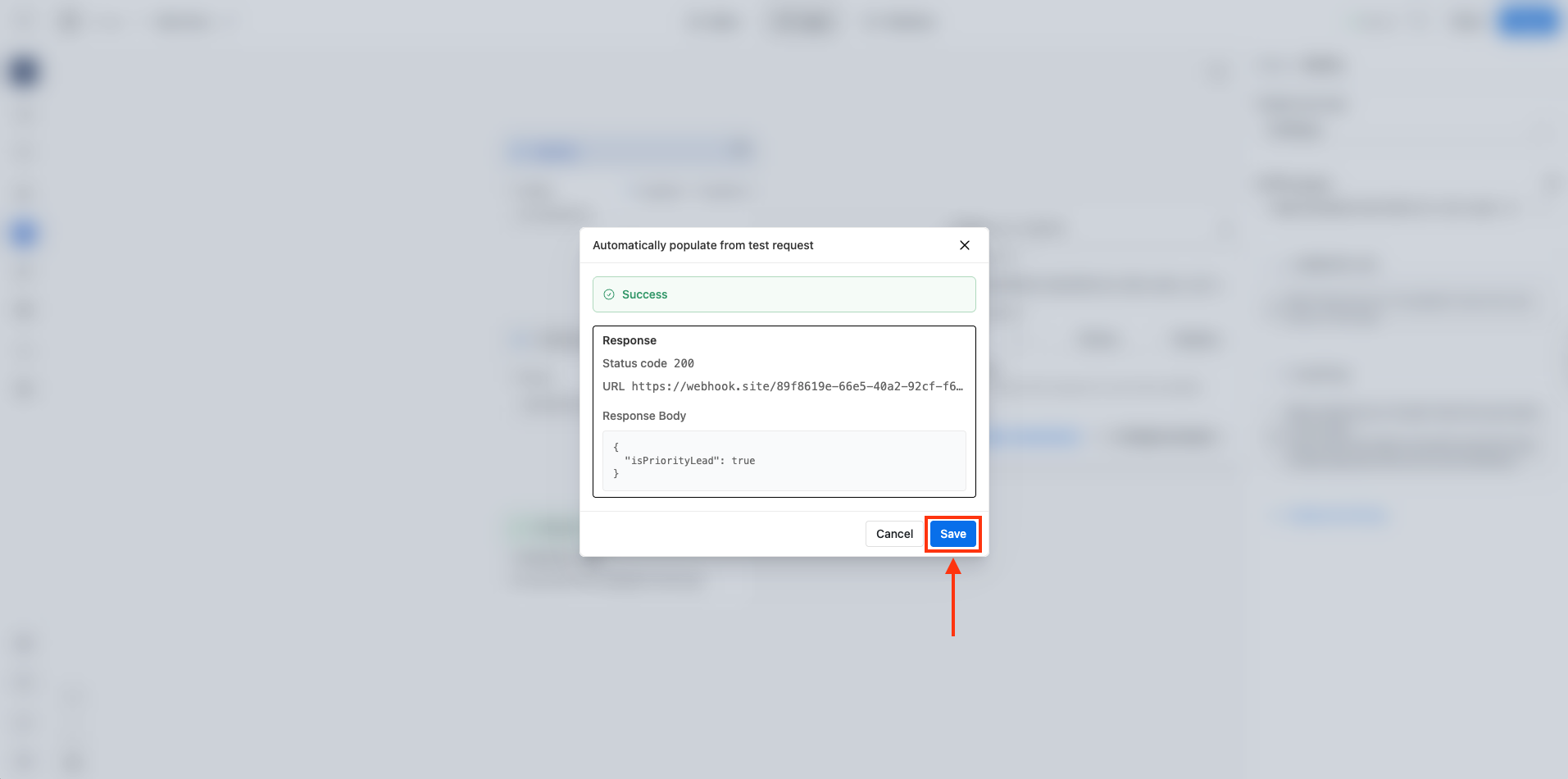 1. Click on "Configure automatically" button.
2. Surface reads the API response and suggests fields you can map.
3. Select the fields you want to map and click on "Save" button.
### Manually Configure the API Response [#manually-configure-the-api-response]
1. Click on "Configure automatically" button.
2. Surface reads the API response and suggests fields you can map.
3. Select the fields you want to map and click on "Save" button.
### Manually Configure the API Response [#manually-configure-the-api-response]
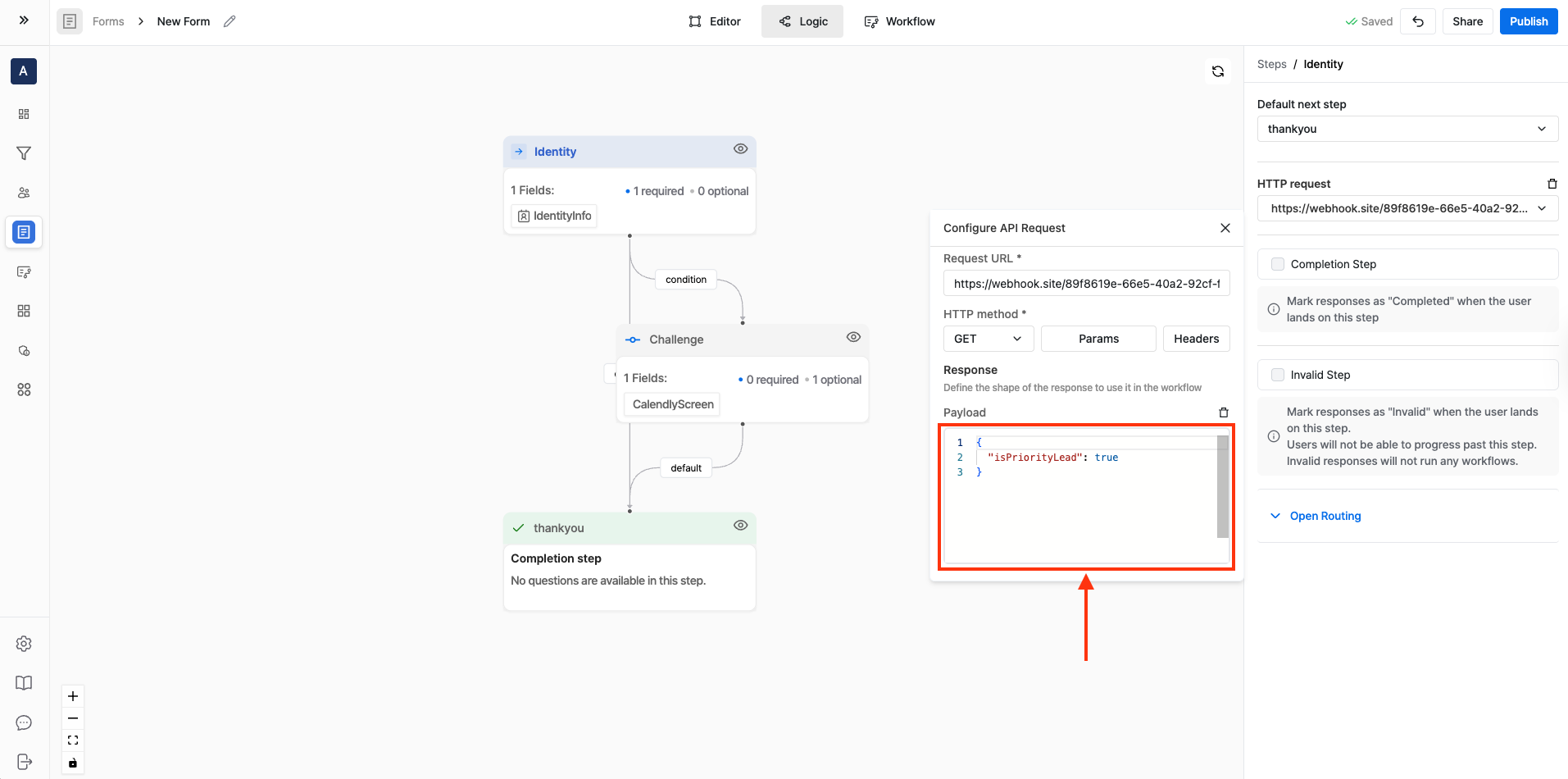 1. Click on "Configure manually" button.
2. You select the fields to extract from the JSON response yourself.
## Step 4: Create an Advanced Routing rule using External API Data [#step-4-create-an-advanced-routing-rule-using-external-api-data]
1. Click on "Configure manually" button.
2. You select the fields to extract from the JSON response yourself.
## Step 4: Create an Advanced Routing rule using External API Data [#step-4-create-an-advanced-routing-rule-using-external-api-data]
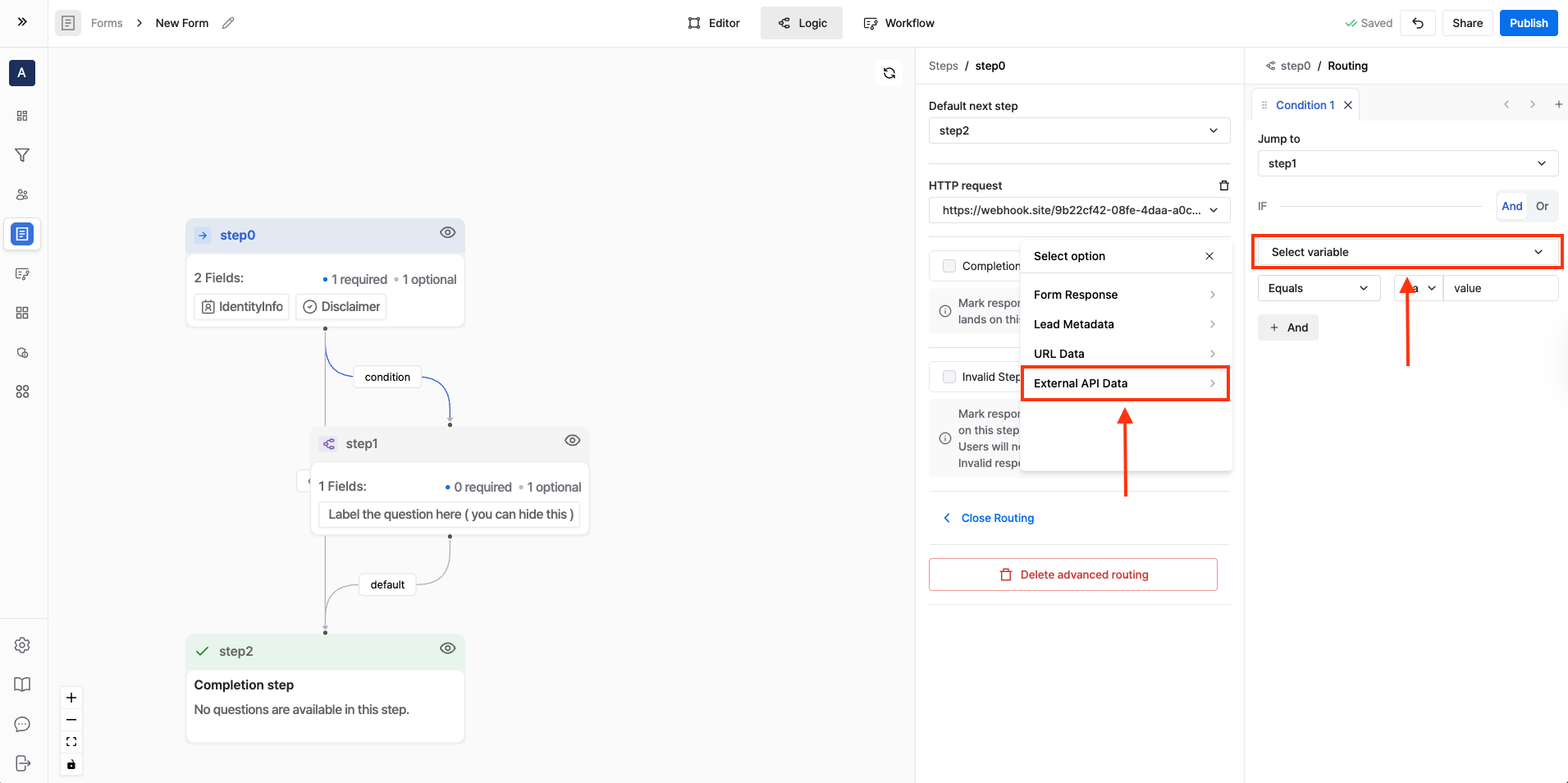 1. Open **Advanced Routing** for the step.
2. Set **Jump to step** to the step you want to send the user to when the condition is met.
3. Under **IF**, set:
* **Source**: `External API Data`
* **Condition**: choose the field you mapped (for example, `isPriorityLead`) and compare it to the expected value (for example, `true`)
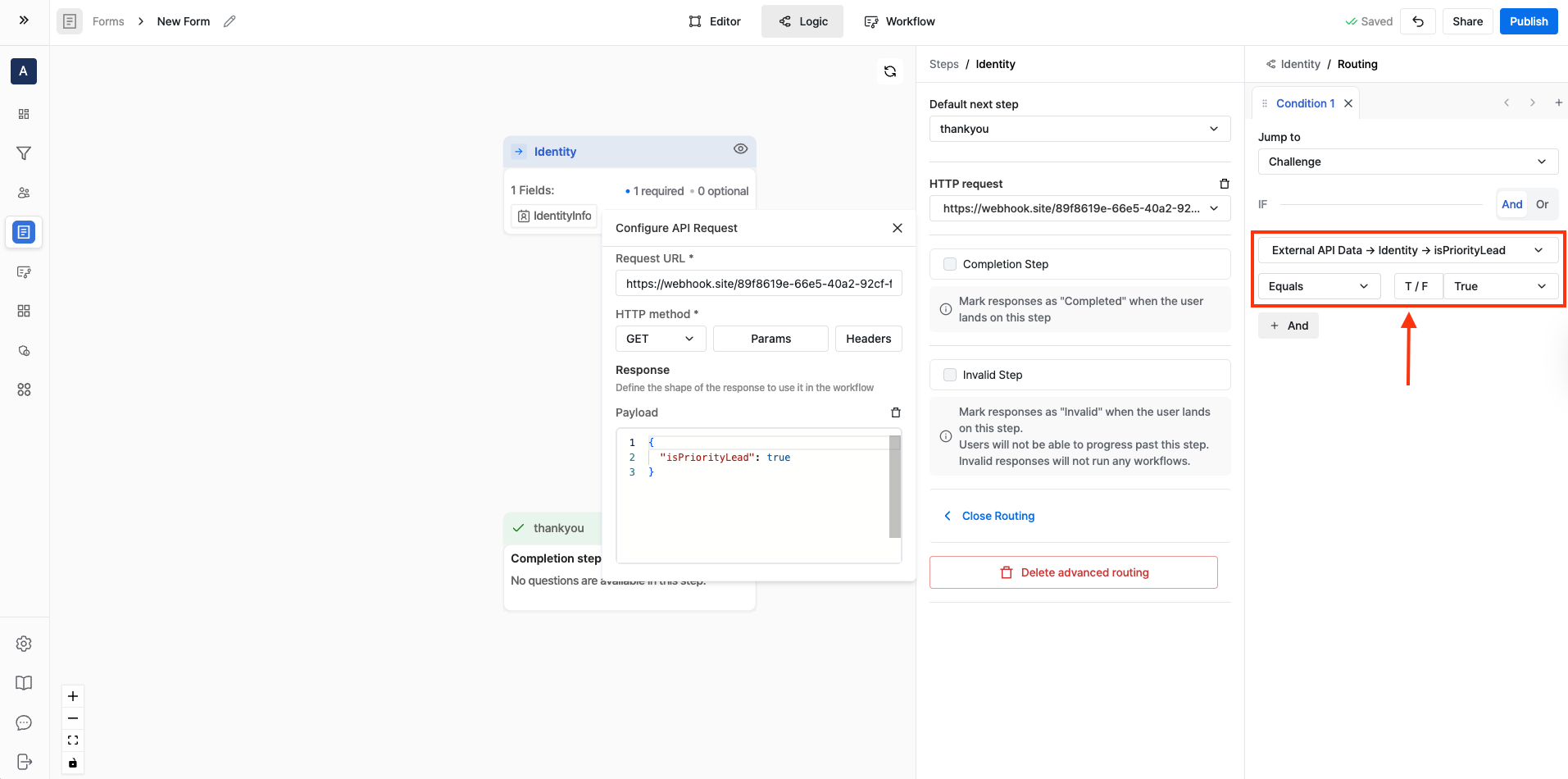
### Example: Only proceed if isPriorityLead is true [#example-only-proceed-if-isprioritylead-is-true]
* **IF**: `External API Data.isPriorityLead` equals `true`
* **THEN**: Jump to `Step: 1 (Book a Demo)`
* **ELSE**: Keep default routing to next step (or jump to a “Not eligible” / “Invalid” step)
1. Open **Advanced Routing** for the step.
2. Set **Jump to step** to the step you want to send the user to when the condition is met.
3. Under **IF**, set:
* **Source**: `External API Data`
* **Condition**: choose the field you mapped (for example, `isPriorityLead`) and compare it to the expected value (for example, `true`)
### Example: Only proceed if isPriorityLead is true [#example-only-proceed-if-isprioritylead-is-true]
* **IF**: `External API Data.isPriorityLead` equals `true`
* **THEN**: Jump to `Step: 1 (Book a Demo)`
* **ELSE**: Keep default routing to next step (or jump to a “Not eligible” / “Invalid” step)
 ## Step 5: Publish and test [#step-5-publish-and-test]
1. Publish your form.
2. Submit test entries that should pass and fail the condition.
3. Confirm respondents are routed to the right step in both cases.
## Step 5: Publish and test [#step-5-publish-and-test]
1. Publish your form.
2. Submit test entries that should pass and fail the condition.
3. Confirm respondents are routed to the right step in both cases.