# HubSpot Tracking
## Step 1: Get the HubSpot Tracking Script [#step-1-get-the-hubspot-tracking-script]
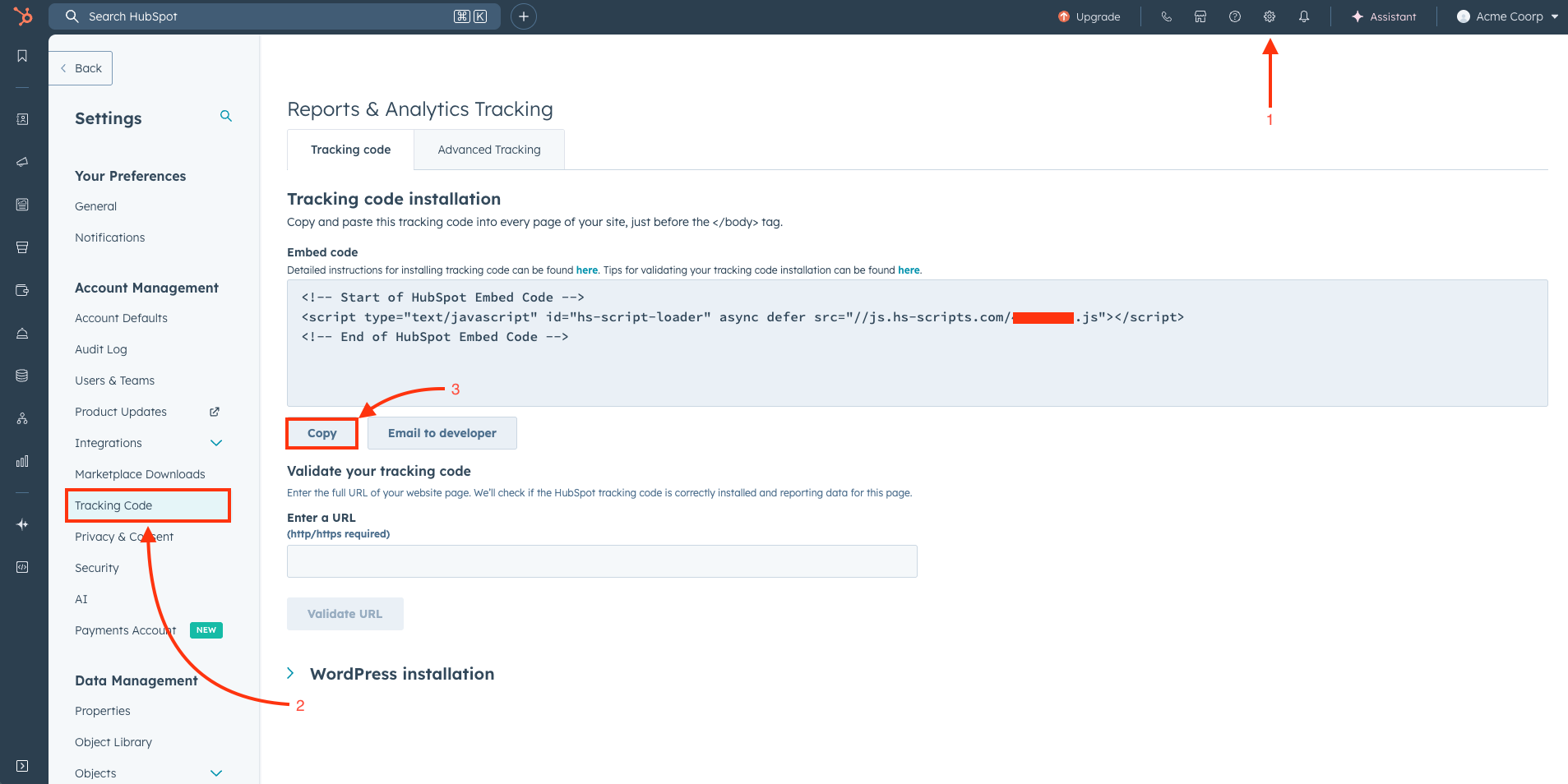 1. **Navigate to HubSpot Settings**
* In your HubSpot account, click the **settings** icon (⚙️) in the top navigation bar
2. **Access Tracking Code**
* In the left sidebar, look for **Account Management**
* Click on **Tracking Code** under the Account Management section
3. **Copy the Tracking Code**
* You'll see your HubSpot tracking code displayed in a text box
* Copy the entire tracking script code
## Step 2: Enable and Add HubSpot Tracking Script in Surface Form [#step-2-enable-and-add-hubspot-tracking-script-in-surface-form]
1. **Navigate to HubSpot Settings**
* In your HubSpot account, click the **settings** icon (⚙️) in the top navigation bar
2. **Access Tracking Code**
* In the left sidebar, look for **Account Management**
* Click on **Tracking Code** under the Account Management section
3. **Copy the Tracking Code**
* You'll see your HubSpot tracking code displayed in a text box
* Copy the entire tracking script code
## Step 2: Enable and Add HubSpot Tracking Script in Surface Form [#step-2-enable-and-add-hubspot-tracking-script-in-surface-form]
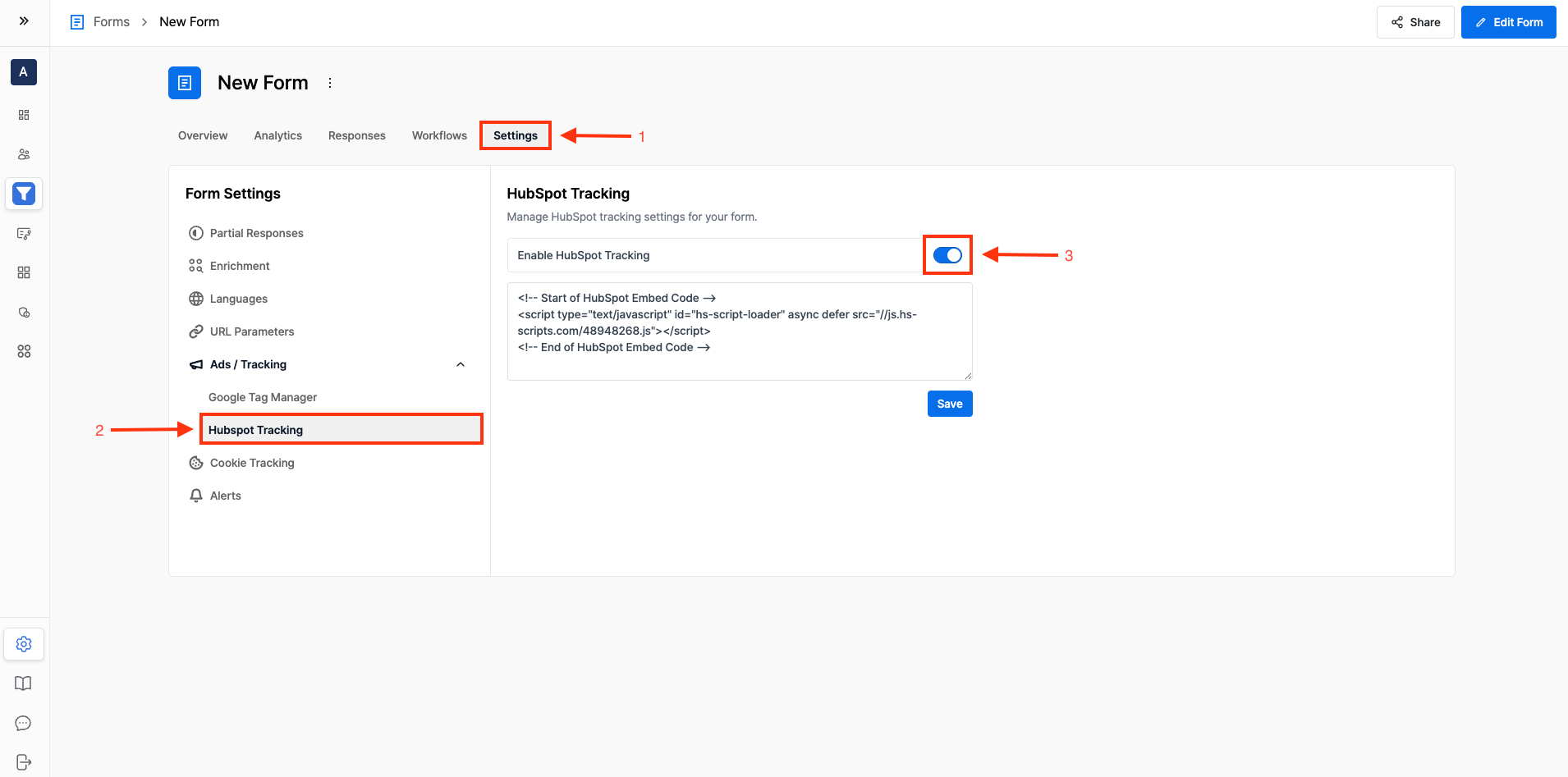 1. **Open Form Settings**
* Go to your Surface form dashboard
* Navigate to the form you want to add HubSpot tracking to
* Click on **Settings**
2. **Find HubSpot Tracking Option**
* In the form settings, look for **Ads / Tracking** section
* Click on **HubSpot Tracking**
3. **Enable and Configure Tracking**
* Toggle the **Enable HubSpot tracking** switch to turn it on
* Paste the HubSpot tracking script you copied in Step 1 into the script field below
* Click **Save** to apply the changes
1. **Open Form Settings**
* Go to your Surface form dashboard
* Navigate to the form you want to add HubSpot tracking to
* Click on **Settings**
2. **Find HubSpot Tracking Option**
* In the form settings, look for **Ads / Tracking** section
* Click on **HubSpot Tracking**
3. **Enable and Configure Tracking**
* Toggle the **Enable HubSpot tracking** switch to turn it on
* Paste the HubSpot tracking script you copied in Step 1 into the script field below
* Click **Save** to apply the changes